I often find myself needing to type special characters on my iPhone. Sometimes it’s for work emails, other times it’s when I’m chatting with friends about a brand or product. For a while, I struggled with how to get those little ™ or ® symbols to appear. I remember one time, I even tried copying and pasting it from a website, which was a bit of a hassle. It felt like there should be an easier way, and thankfully, there is! I’m excited to share my simple, step by step process for how to type the ™ (trademark) symbol on your iPhone, based on my own discoveries.
My Experience with Special Characters
When I first needed the ™ symbol, my immediate thought was to look for it on the keyboard. I pressed and held different keys, hoping a pop up would show me extra symbols, but no luck with the trademark sign. It was a bit frustrating because I knew my iPhone was capable of so much, and a simple symbol seemed like it should be easy. Eventually, I stumbled upon the trick, and it’s actually quite straightforward once you know where to look. It’s built right into the standard keyboard.
How to Type the ™ Symbol on Your iPhone: My Easy Steps
Here’s the exact method I use to type the trademark symbol, and it works every time for me. You do not need to download any special apps or change complex settings.
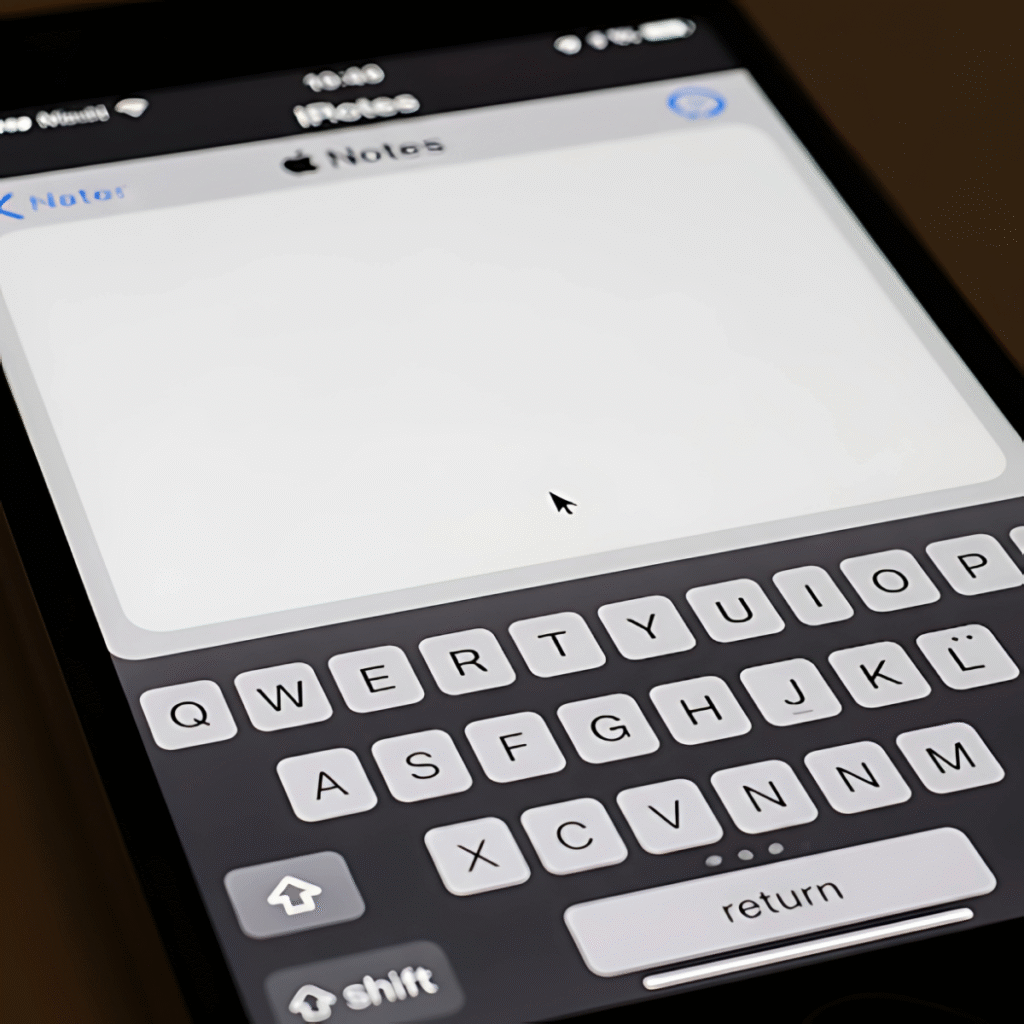
Open Any App Where You Can Type: Whether it is Messages, Mail, Notes, or Safari, just open an app where the keyboard will appear. I usually just open a new note in the Notes app to practice or type it quickly.
Here is the screenshot of this step:
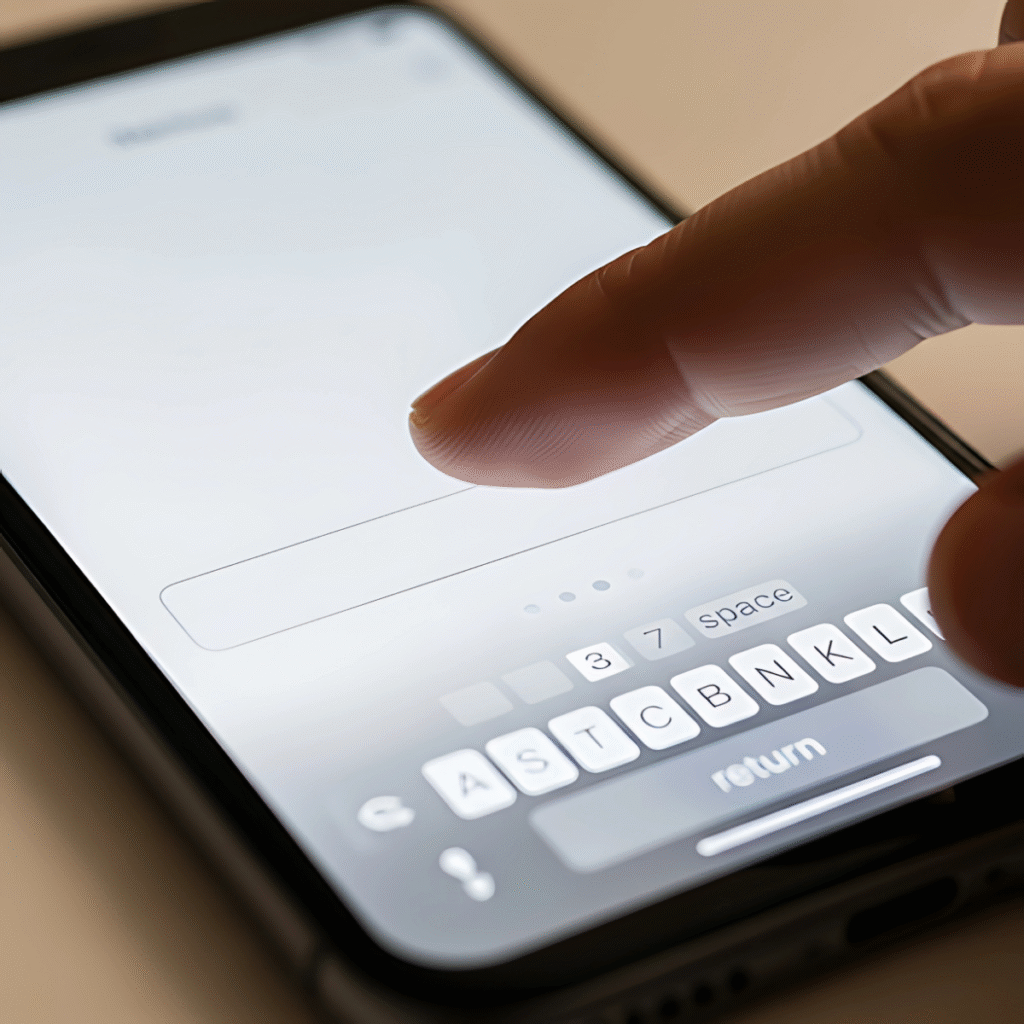
Bring Up the Keyboard: Tap on the text field to make your iPhone’s keyboard appear on the screen.
Here is the screenshot of this step:
Tap the “123” Button: On the bottom left side of your keyboard, you will see a button labeled “123”. This switches your keyboard from letters to numbers and some common symbols. Tap it once.
Here is the screenshot of this step:

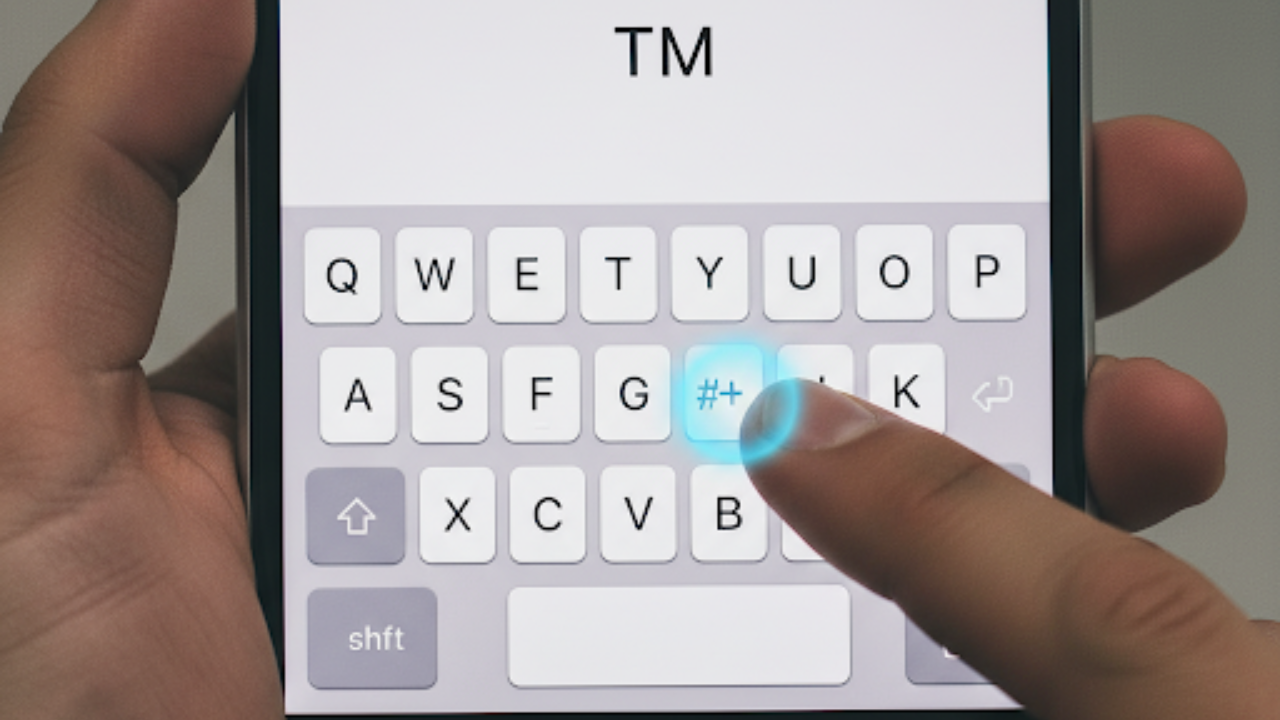
Tap the “#+=” Button: After tapping “123”, you will see a new set of symbols. Look for the “#+=” button, usually on the bottom left corner, below the numbers. Tap this button. This reveals even more symbols.
Here is the screenshot of this step:
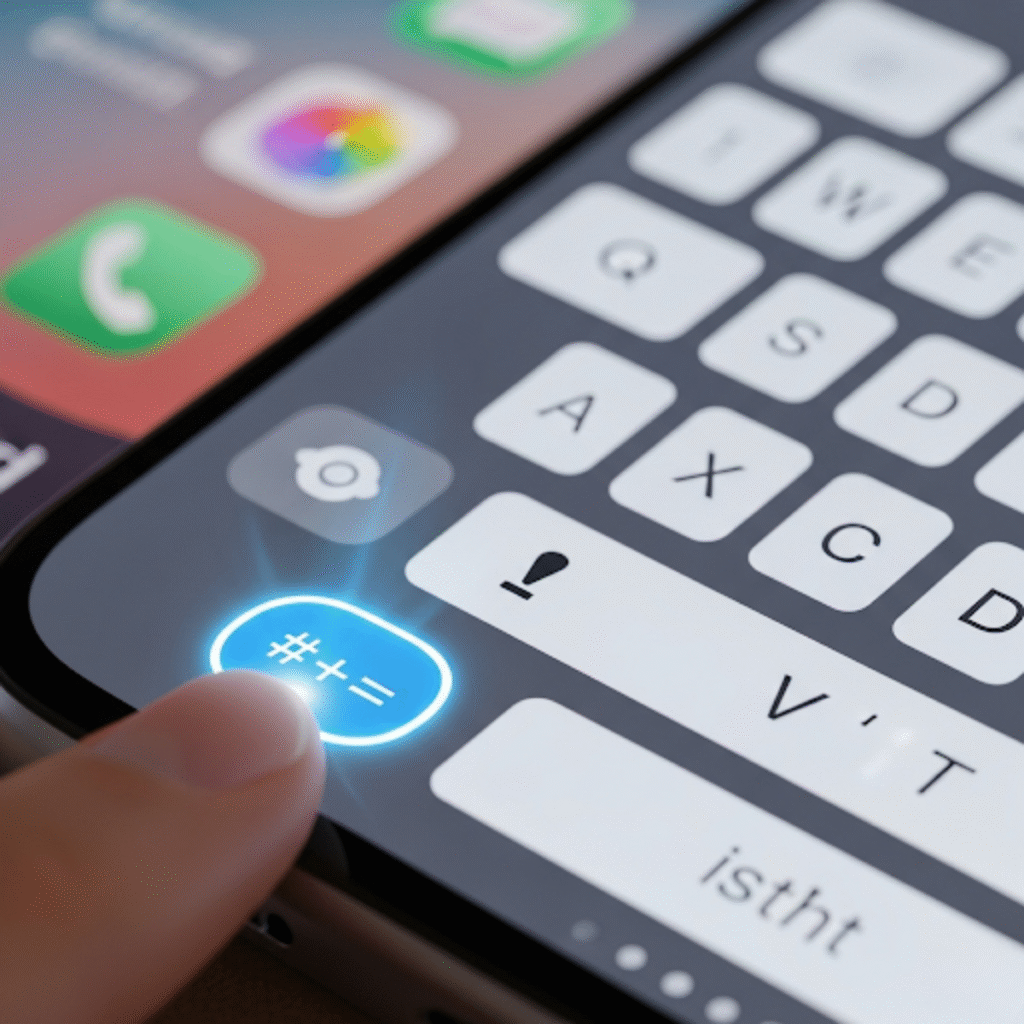
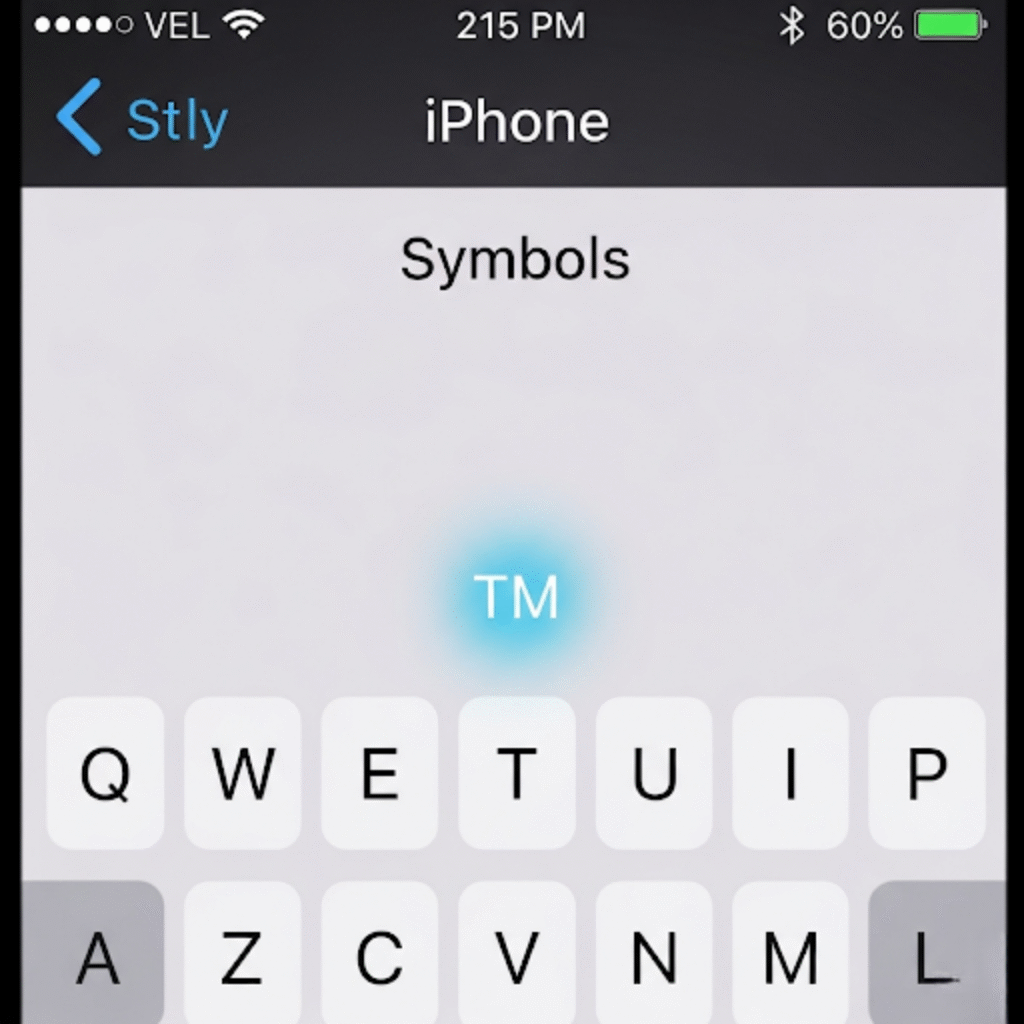
Locate and Tap the ™ Symbol: Now, on this expanded symbols keyboard, you should see the ™ symbol. It is typically in the first row of symbols, sometimes near the exclamation point or asterisk. Just tap on it, and it will appear in your text.
Here is the screenshot of this step:
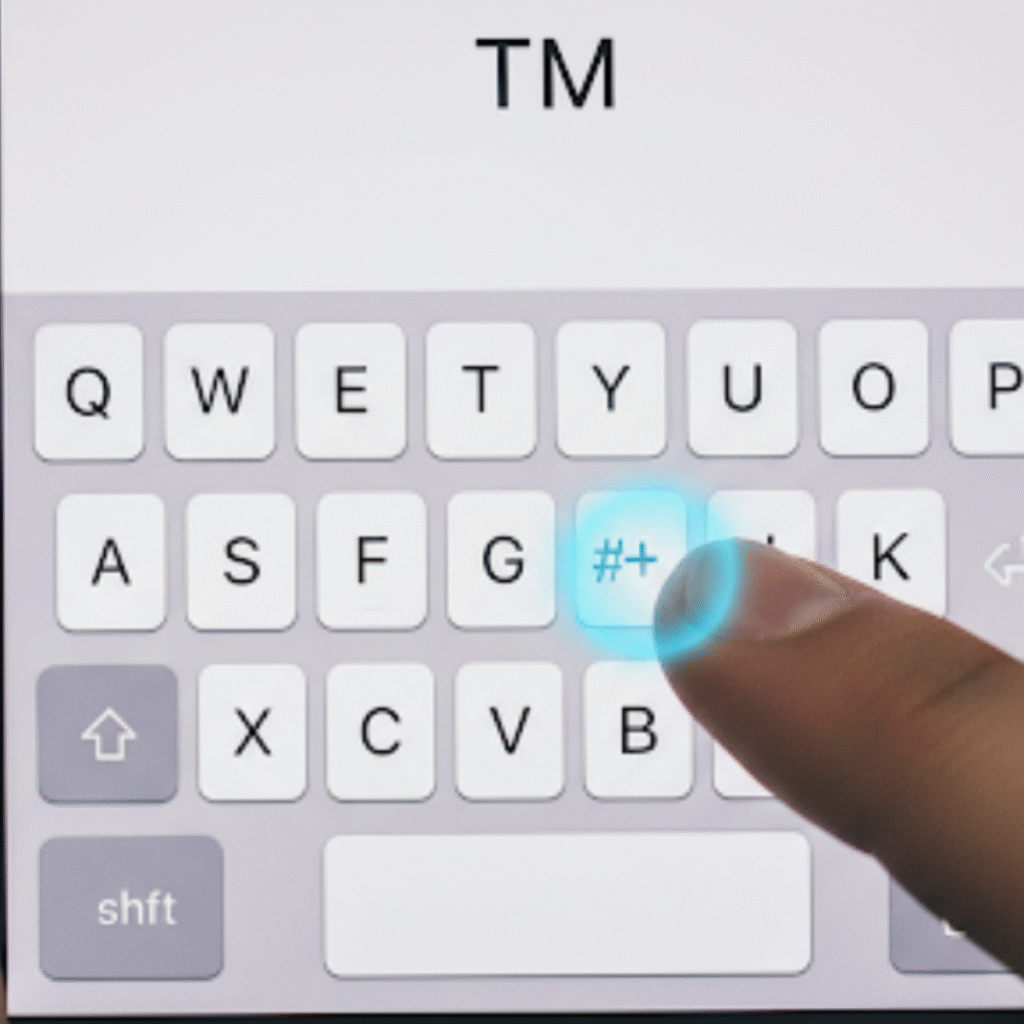
That is it! Once you know these steps, it becomes second nature. I can now type the ™ symbol in just a few quick taps, which saves me a lot of time and frustration.
Here is the screenshot of this step:
My Pro Tip for Other Symbols
This same method works for many other special characters you might need, like the ® (registered trademark) symbol or © (copyright) symbol. Just explore those symbol keyboards, and you will likely find what you are looking for.
I also learned that for frequently used symbols, you can create a Text Replacement shortcut. This is a bit more advanced, but it’s super handy. For example, I set up a shortcut so that when I type “tmk,” my iPhone automatically replaces it with “™”. Here is how I set that up:
- Go to Settings.
- Tap on General.
- Tap on Keyboard.
- Tap on Text Replacement.
- Tap the + icon in the top right corner.
- In the “Phrase” field, I typed “™”.
- In the “Shortcut” field, I typed “tmk”.
- Then I tapped “Save”.
Now, whenever I type “tmk”, my iPhone suggests “™”, and I can just tap space to insert it. This is a real time saver for symbols I use all the time.
Finding out how to easily type the ™ symbol made a small but noticeable improvement in my daily iPhone use. It is one of those little tricks that once you know it, you wonder how you ever managed without it. I hope sharing my experience helps you type with more ease and confidence on your iPhone too!
Related Reads: TFW You Need To Know What TFW Means On iPhone