As an avid podcast listener and music lover, I rely on my iPhone’s volume to be loud and clear. So you can imagine my frustration when, a few months ago, I noticed my phone’s volume was incredibly low. Whether I was listening to a song or on a FaceTime call, I had to strain to hear anything. I checked all the obvious things like the volume buttons and the settings, but nothing seemed to work. I even thought my phone might be broken.
Through some patient troubleshooting and a bit of trial and error, I discovered a few key reasons why this was happening. I was able to fix the problem myself without having to go to a repair shop. I want to share my personal experience and the exact steps I took to solve this frustrating problem, so you don’t have to go through the same confusion I did.
My Personal Troubleshooting Journey
My first instinct was to check the volume buttons on the side of the phone. I pressed the “volume up” button repeatedly, but the sound level just wasn’t increasing. Then I went into the settings to check the volume slider, and it was already at the maximum. This is when I started to get really worried.
I realized the issue might not be with the main volume setting. I needed to look for other things that could be quietly limiting my phone’s sound. I was surprised to find there were a few different reasons for the low volume, and they were all simple to fix.
Step by Step Guide to Fixing Low iPhone Volume
Here is the checklist I went through to fix the low volume on my iPhone. I recommend you try these steps in the same order.
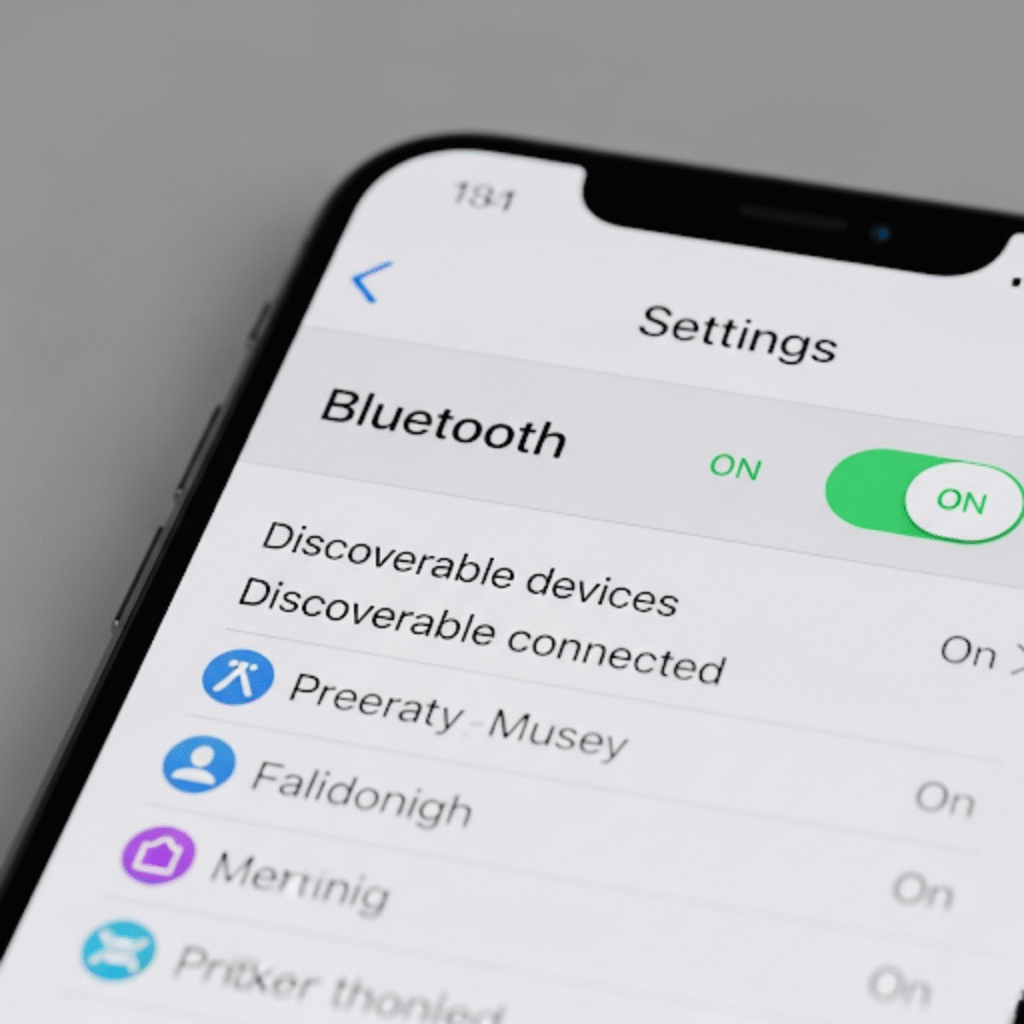
Check for an Active Bluetooth Connection: This was my biggest discovery. My iPhone was automatically connecting to a Bluetooth speaker I had used a few days earlier. Even though the speaker was off, my phone’s audio was still routing to it. I didn’t even realize it was connected. To fix this, I simply went to Settings > Bluetooth and turned Bluetooth off. Instantly, my phone’s volume went back to normal. If you have a Bluetooth device nearby, make sure your phone isn’t connected to it.
Here is the screenshot of this step:
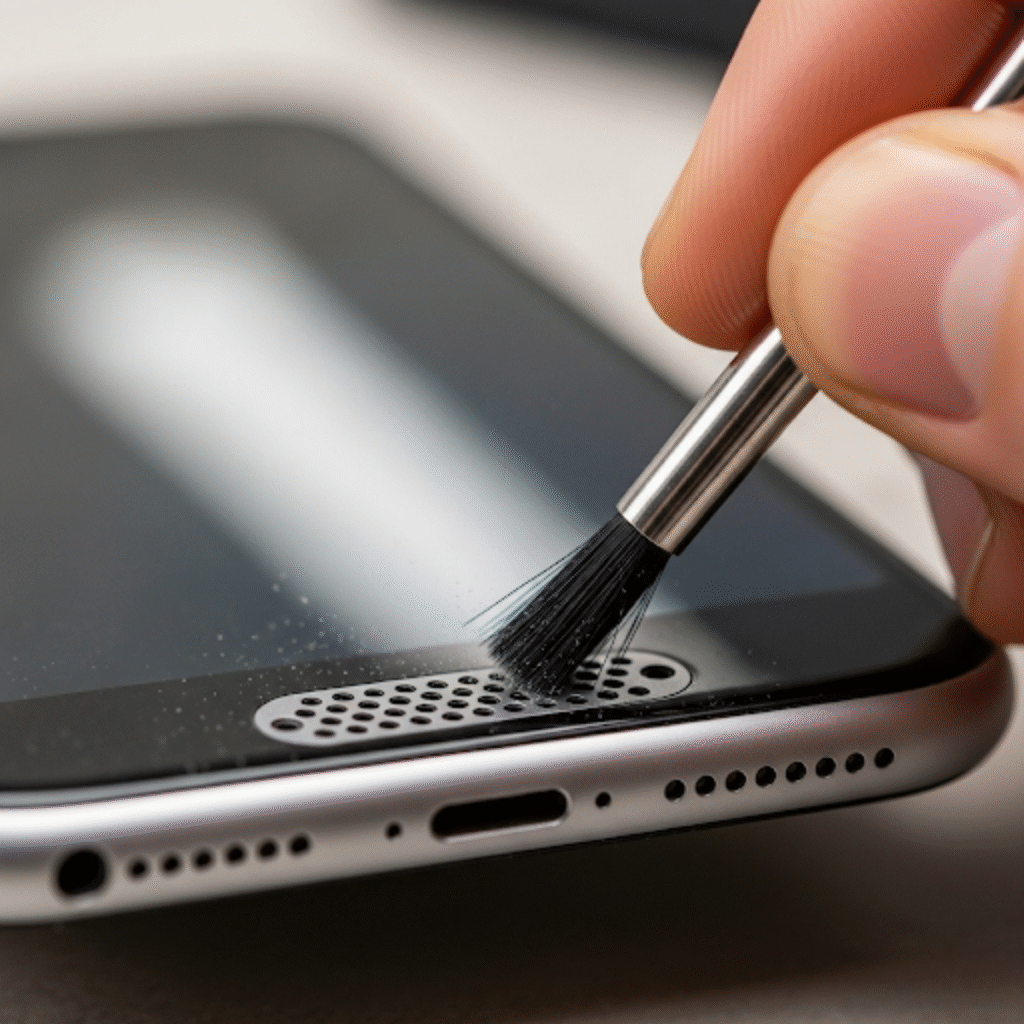
Clean the Speaker and Receiver: My next step was to check for physical blockages. My phone lives in my pocket and my purse, so it collects all sorts of dust and lint. I took a small, soft bristled brush (like a toothbrush) and carefully brushed out the main speaker grille at the bottom of the phone. I also gently cleaned the earpiece speaker at the top of the screen. I was surprised at how much gunk came out. This instantly improved the clarity and volume of calls and music.
Here is the screenshot of this step:
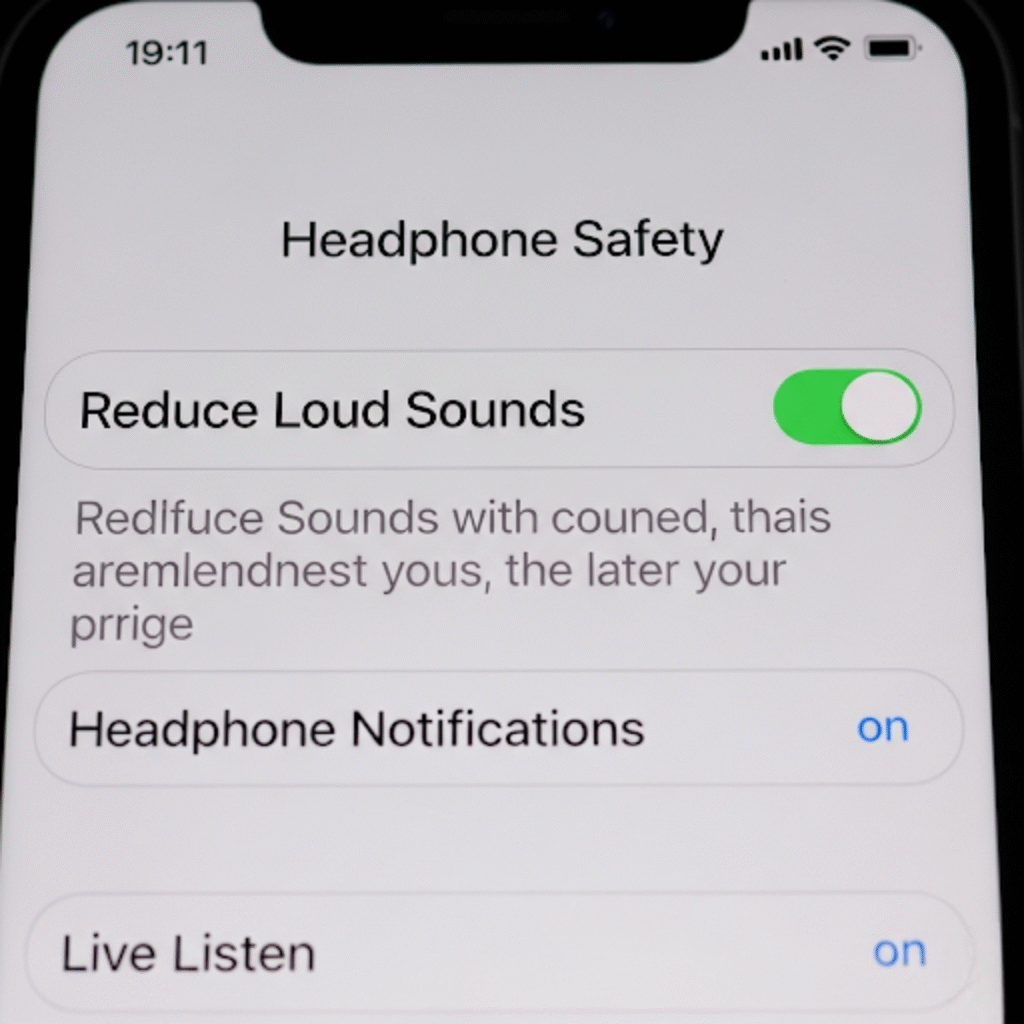
Disable “Reduce Loud Sounds” in Settings: I learned that this is a feature designed to protect your hearing. It automatically lowers the volume of loud sounds. While it’s a good safety feature, it can sometimes be a bit too aggressive. Here is how I checked it:
Go to Settings.
Tap on Sounds & Haptics.
Tap on Headphone Safety.
Make sure the toggle for “Reduce Loud Sounds” is off. If it is on, you can turn it off or adjust the slider to a higher decibel level.
Here is the screenshot of this step:
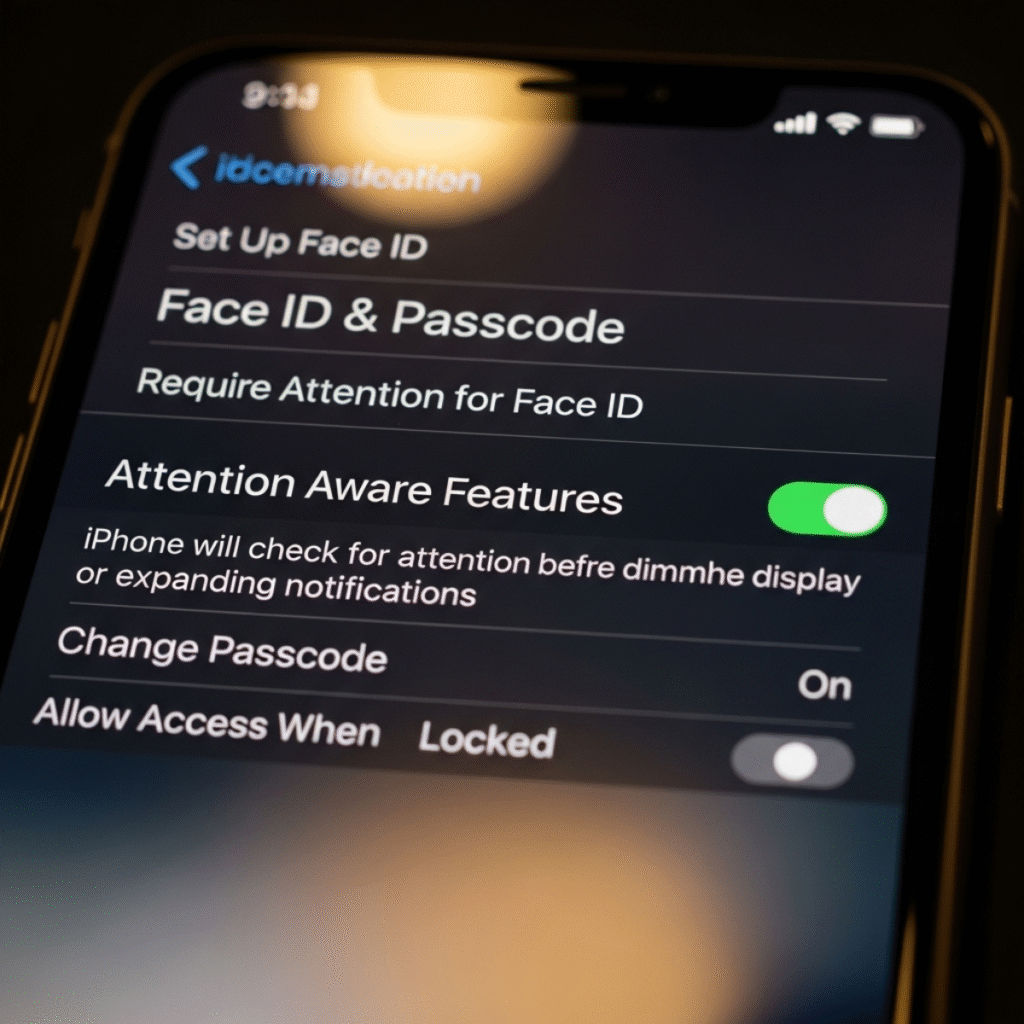
Check the “Attention Aware Features” Setting: This is a neat trick that can sometimes be the cause of low earpiece volume. My iPhone uses the front camera to detect if my face is looking at the screen. If it thinks I am looking at it, it can automatically lower the volume of alerts and ringtones.
Go to Settings.
Tap on Face ID & Passcode.
Turn off Attention Aware Features.
Here is the screenshot of this step:
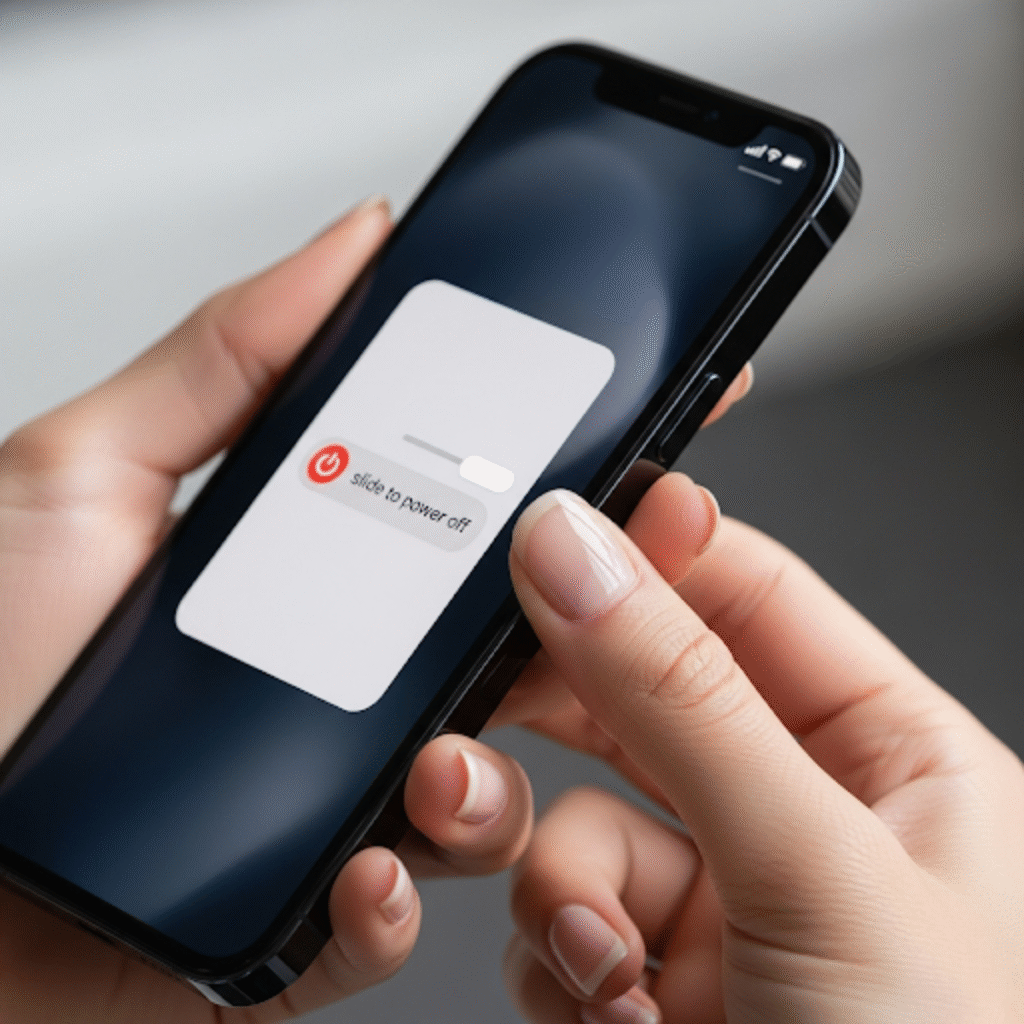
Restart Your iPhone: The classic solution. Sometimes a simple software bug or a glitch in an app can cause the volume to act strangely. A full restart can clear these out and return everything to normal. I always try this as a last resort before I start to think about bigger issues.
Here is the screenshot of this step:
By following these steps, I was able to solve my iPhone’s low volume problem in just a few minutes. I went from being worried my phone was broken to feeling like a troubleshooting expert. I hope my experience helps you get your phone’s volume back to where it should be.
Related Reads: How to Type the ™ Symbol on Your iPhone (My Simple Guide)