I completely understand your frustration. It can be a huge roadblock when you’re trying to do something simple like How to Remove Samsung account Without two Step Verification? and a security feature you can’t access gets in the way.
I’ve been there myself. I’ve spent hours trying to figure out how to get into an account when I no longer had the phone number or the email address linked to it. It is so annoying.
The first thing I want to tell you is that there is no magical trick or secret tool to bypass Samsung’s two-step verification.
I know that probably isn’t what you want to hear. But the reason for that is simple it is a security measure and if it could be bypassed it wouldn’t be very secure would it?
Your information would be at risk. So while it feels like a barrier it is actually there to protect you. The real solution is to get control back of your account so you can then remove it. I’m going to walk you through the proper way to do that.
The Problem Itself Why It is a Good Thing
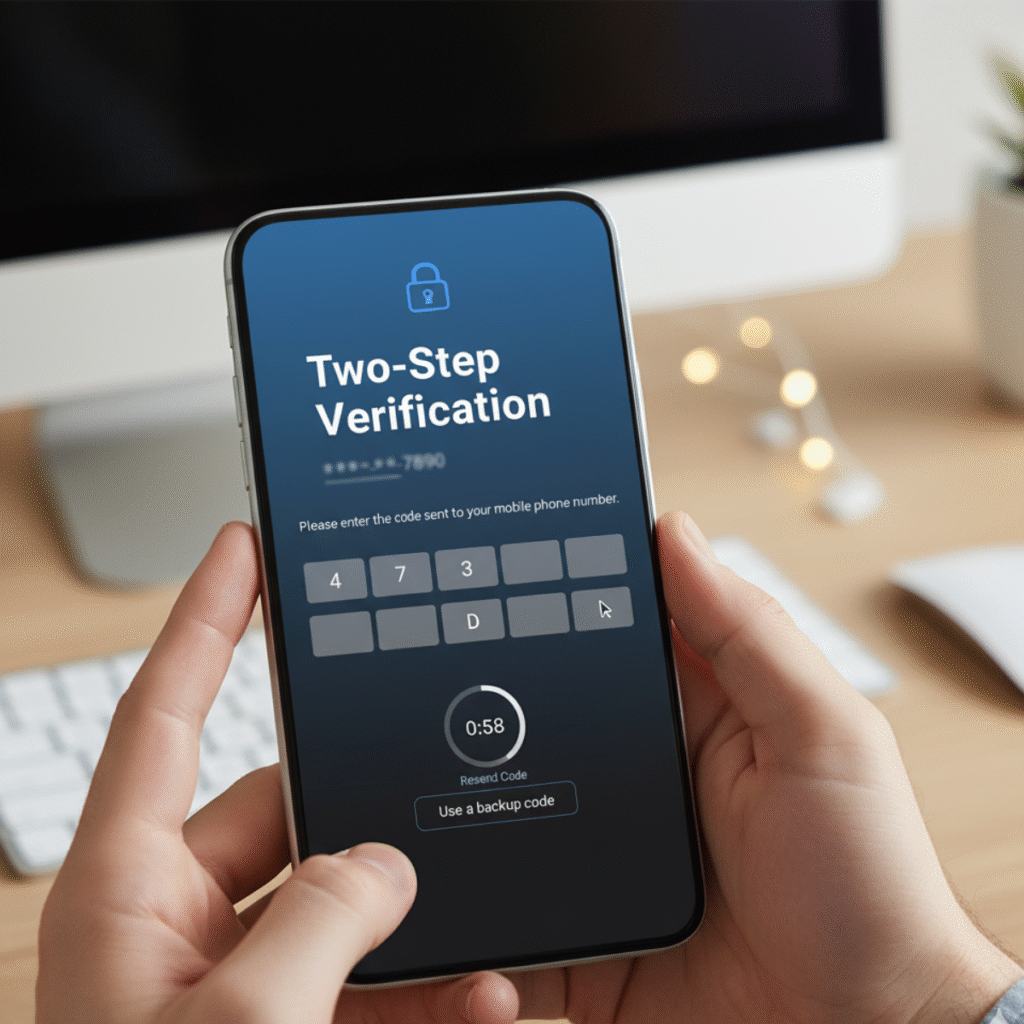
Two-step verification is an extra layer of security. It means that even if someone gets your password they still can’t get into your account because they don’t have your phone or your backup codes.
Samsung uses this to protect all of the private information you have linked to your account like your Samsung Pay information your saved photos your contacts and even your location.
So even though it is a headache right now it is truly a good thing. My goal is to help you get through this without putting your privacy at risk.
The Real Solution Gaining Back Control – How to Remove Samsung account Without two Step Verification?
The path to removing your account is to first get back in control of it. You will need to regain access by resetting your password and then following the official recovery process. Here is what I recommend you do step by step.
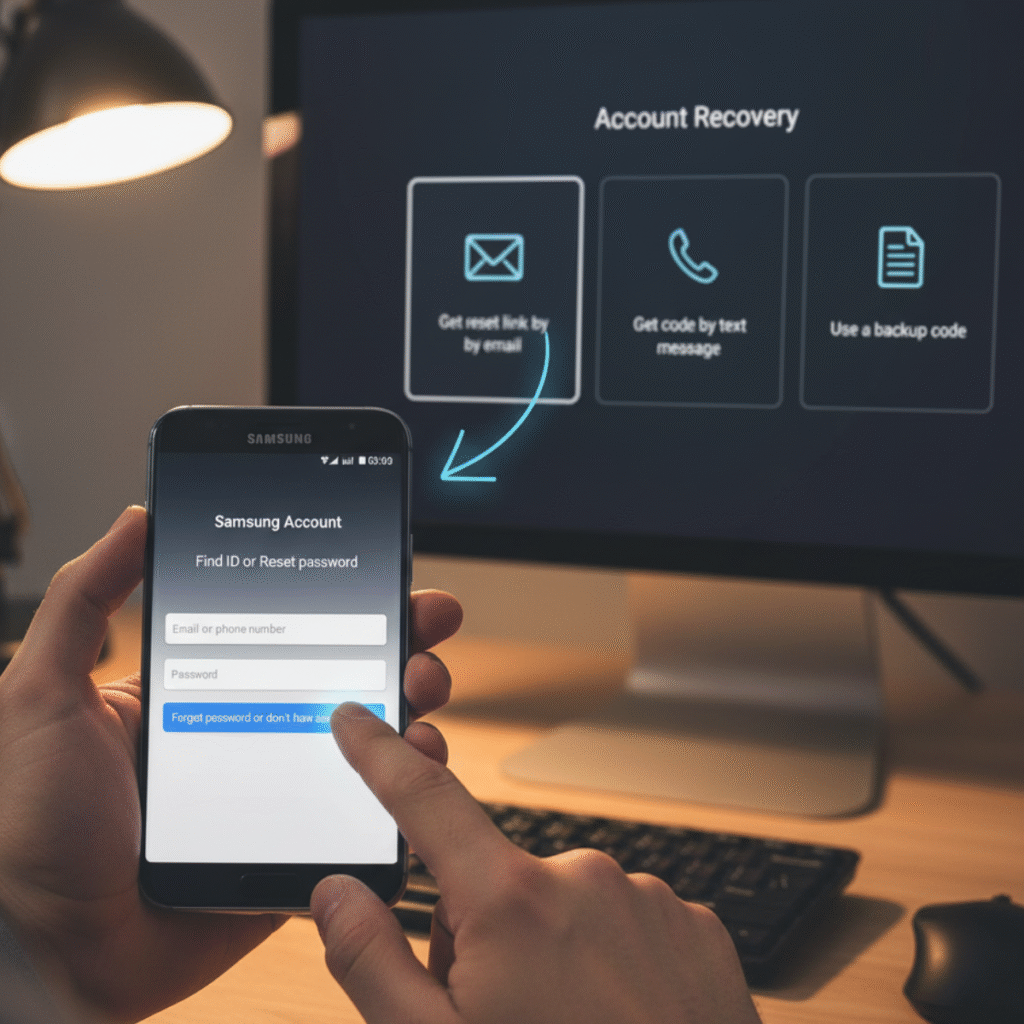
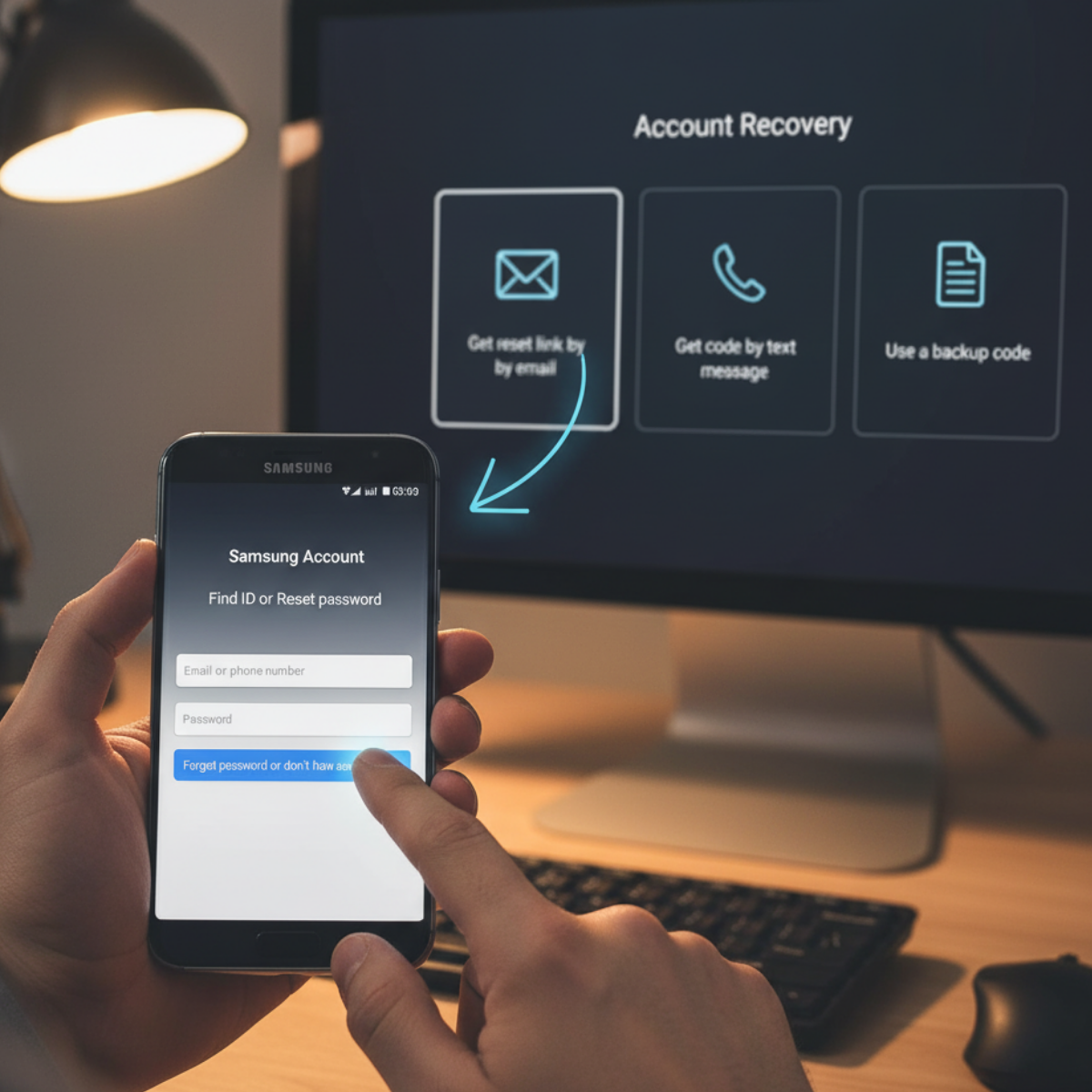
Head to the Samsung Account Login Page. On your phone or computer go to the Samsung account website. Look for a link that says something like “Forgot password or don’t have an account?” Tap on it.
Start the Account Recovery. Samsung will ask you for the email address or phone number you used to sign up. After you enter it you will see options for how you can reset your password. This is where your recovery information comes in. You will likely be given options to send a password reset link to your email address or to a recovery phone number.
Use a Recovery Option. If you have access to the email you used just select that option. Samsung will send you a password reset email. Open that email and click on the link to create a new password. If you don’t have access to your email but you have a recovery phone number you can choose to have a code sent to that phone number instead. Enter the code and then you will be able to set a new password.
Sign In and Remove the Account. Once you have a new password you can sign back into your account. The two-step verification prompt will likely come up again but now you can either use the verification code that gets sent to your recovery number or you can use one of your backup codes if you saved them.
After you are successfully logged in on your phone you can finally remove the account.
Go to your phone’s Settings app then tap on “Accounts and backup.” Select “Manage accounts” then tap on your Samsung account.
From there you should see the option to “Remove account.” Tap it confirm and you are done.
What if You are Locked Out Completely?
I know some people get into a situation where they don’t have access to their recovery email or their phone number. If this is you don’t panic. This is where you have to go through an official support channel to prove your identity.
My experience tells me this can be a long process but it is necessary for security. You will need to contact Samsung’s support team directly. They have different ways to contact them like a live chat a phone number or an email. You will likely have to provide some personal information to prove you are the real owner of the account. It is their job to help you safely regain access.
It can be annoying to go through all of these steps just to remove an account but it is all done to keep your data safe.
I hope this guide helps you get back in control of your account and solves your problem without any unnecessary stress.
To lean more Samsung Tips & Tricks https://techwavealerts.com/category/samsung-q-a/