I know how frustrating it can be when you need to change a password, especially when you’re on the go and using your phone. Whether you’ve forgotten your password, or you just want to update it for better security, I’m here to walk you through the process. The great news is that you can do this right from your iPhone, and I’ll show you exactly How To Change AOL Password on iPhone.
The most reliable way to change your AOL password and ensure the change applies everywhere is by using a web browser, not the AOL app itself. This process ensures your main account password is what gets updated, which will then allow you to update any apps that use your AOL account, including the native iPhone Mail app.
Let’s get started.
How To Change AOL Password on iPhone
Step 1: Open Your Browser and Go to AOL
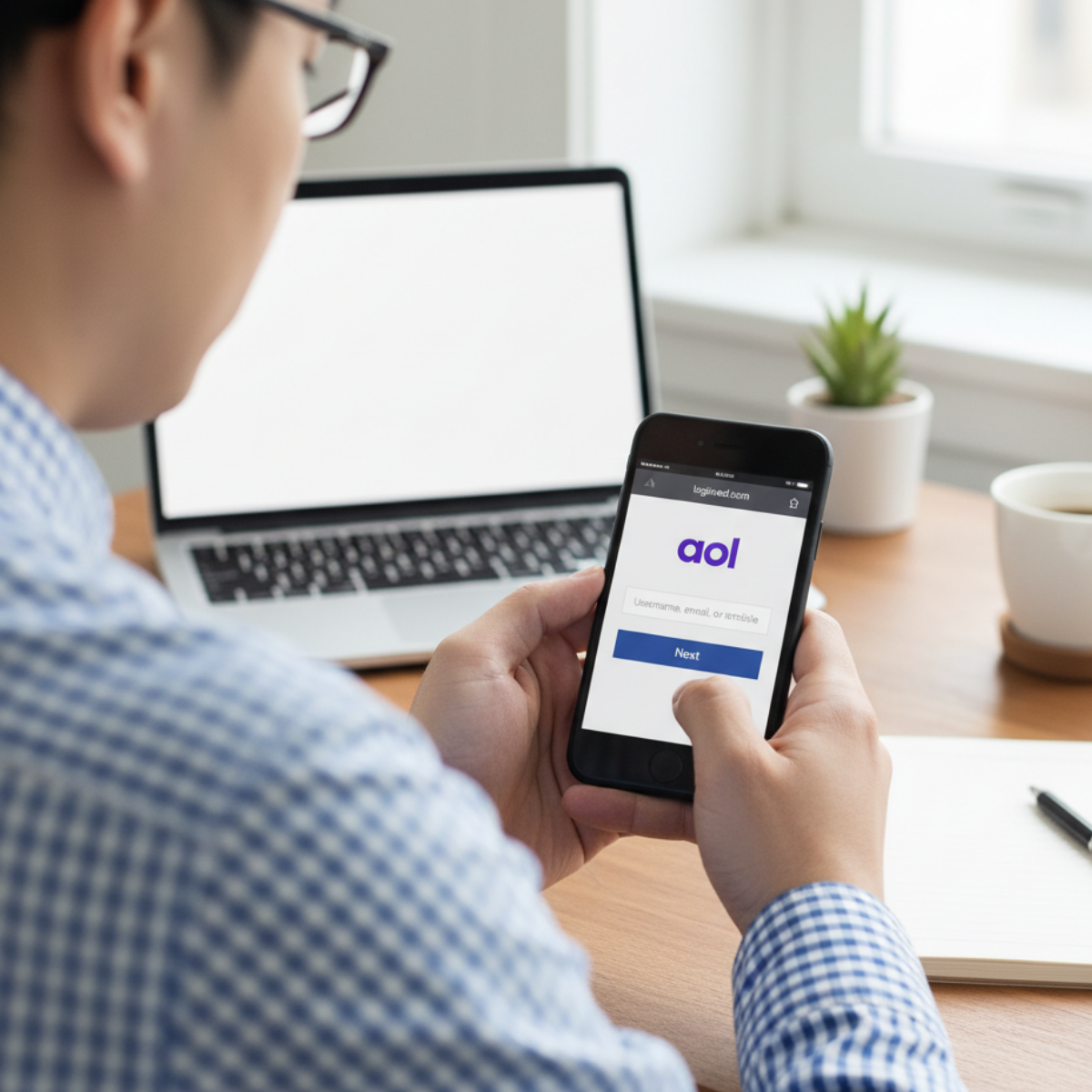
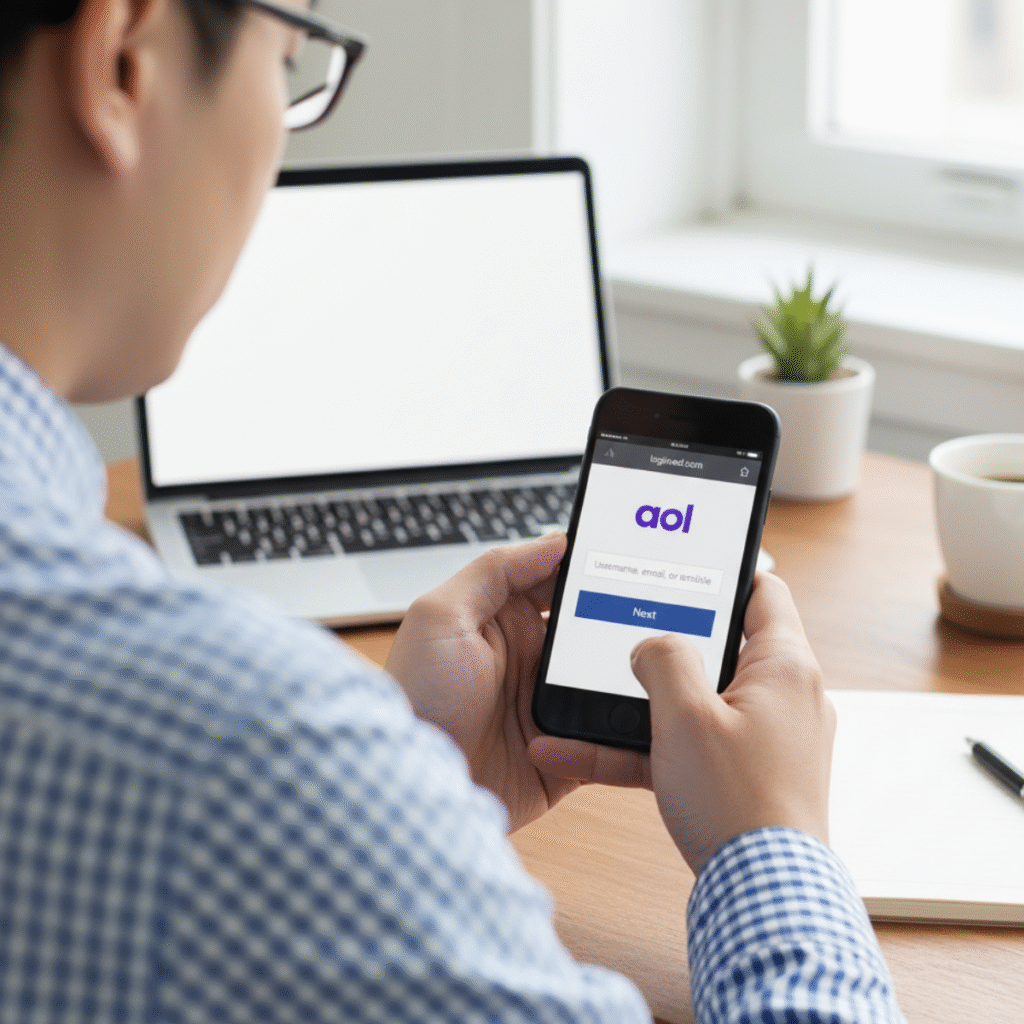
The first thing I do is open up a web browser on my iPhone, like Safari or Chrome. Then, I go to the official AOL login page. Don’t worry about logging in just yet. Once the page loads, look for the “Sign In” button or a similar link.
Step 2: Navigate to Account Security
Once you’re on the sign-in page, go ahead and log in with your current AOL username and password. After you’ve successfully logged in, look for your profile picture or account name, usually in the top-right corner of the screen. Tap on it to open a menu, then select “Account Info” or “Account Security.”
Step 3: Change Your Password
On the Account Security page, you’ll see a section titled “Password” or “How you sign in.” There should be a “Change password” option there. Tap on it.
AOL will likely ask you to confirm your identity, either by re-entering your current password or by sending a verification code to your linked phone number or recovery email. Follow the on-screen prompts to complete this step.
After verifying your identity, you’ll be prompted to create your new password. Now’s the time to make it a strong one! I always recommend using a mix of uppercase and lowercase letters, numbers, and symbols. Once you’ve entered and confirmed your new password, tap “Continue” or “Save.” You should see a confirmation message letting you know the password has been successfully changed.
Step 4: Update the Password on Your iPhone
Now that your AOL password has been updated, you’ll need to update it on your iPhone. If you’re using the native iPhone Mail app, you’ll likely receive an error message that your password is incorrect. Here’s how to fix it:
- Go to your iPhone’s Settings app.
- Scroll down and tap on Mail.
- Tap on Accounts, then select your AOL account.
- Tap on Account (you may need to enter your new password here).
- Enter your new password in the password field and save the changes.
Your email should now sync correctly!
I hope this helps you get back to a secure inbox. Remember, keeping your passwords up-to-date is one of the easiest ways to protect yourself online.
I hope this guide is a helpful starting point! To know more about iPhone Tips & Tricks see my guides
This video provides a step-by-step tutorial on how to change the AOL Password on an iPhone.