I was on a road trip with my family recently when we hit a patch of really bad weather. We had a map downloaded, but my partner still wanted to double check our exact location using our phones. To save battery, he turned on airplane mode on his iPhone. I remember thinking, “Wait, will that still work?” It led to a fun little debate in the car about whether airplane mode truly disconnects everything. After a quick stop and some ahem… “testing,” I finally learned the full truth about how airplane mode affects your iPhone’s location services.
It’s a common question, and I was surprised by how many people, like me, were not exactly sure about the answer. I wanted to share my findings and the simple steps I took to figure it all out, so you don’t have to be left wondering in a moment when it matters most.
My Experience with Airplane Mode and Location
My initial thought was that airplane mode would turn off everything, including my phone’s location. The whole point of it is to disconnect from cellular networks and Wi-Fi, right? It seemed logical that GPS would go along with it. But I also knew that many modern iPhones have a dedicated GPS chip that doesn’t rely on a cellular connection. So, which one was it?
The only way to truly know was to test it out. Here’s what I discovered.
Does Airplane Mode Turn Off Location on iPhone? The Simple Answer
The simple answer is no, not completely.
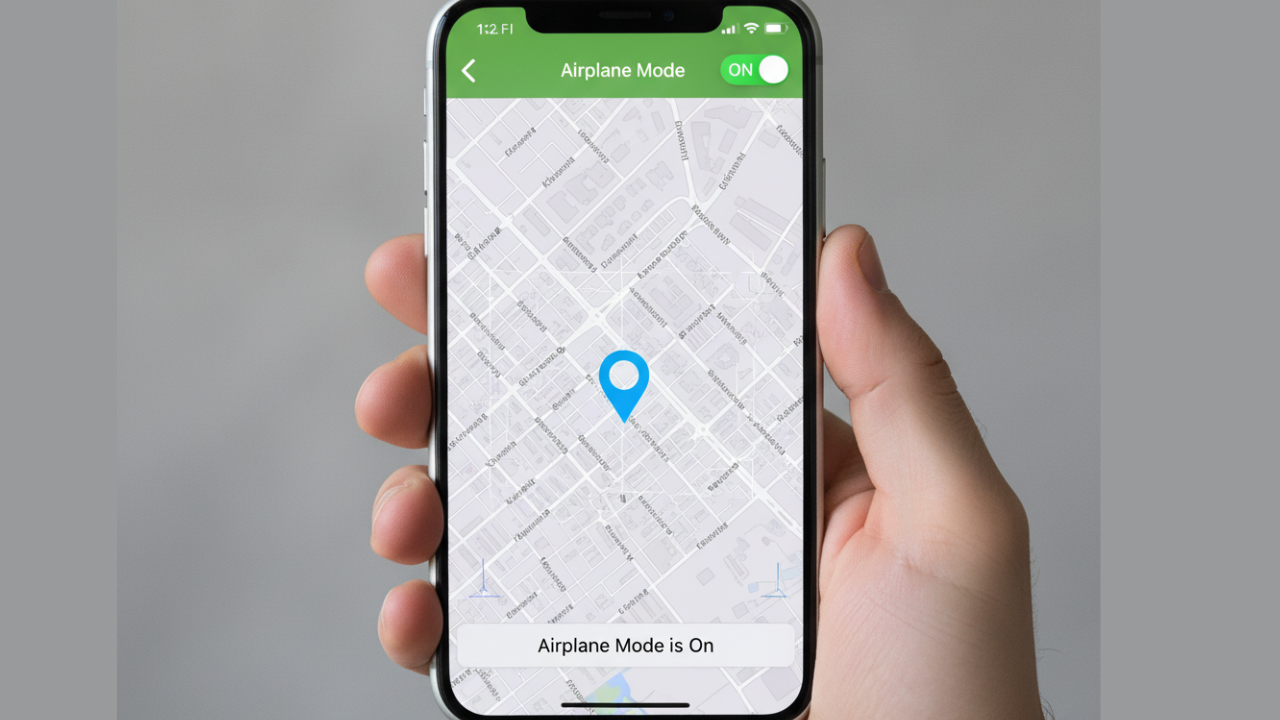
Turning on airplane mode on your iPhone will turn off your cellular connection, Wi-Fi, and Bluetooth. It’s designed to stop your phone from sending or receiving signals that could interfere with an airplane’s instruments. However, it does not turn off your phone’s internal GPS receiver.
Your phone has a built in GPS chip that receives signals from satellites orbiting the Earth. This process is passive, meaning your phone is only listening for signals. It is not sending any information out. Because of this, it can still determine your location even in airplane mode.
My Step by Step Test and What I Saw
To prove this to myself and my family, I ran a quick test on my iPhone.
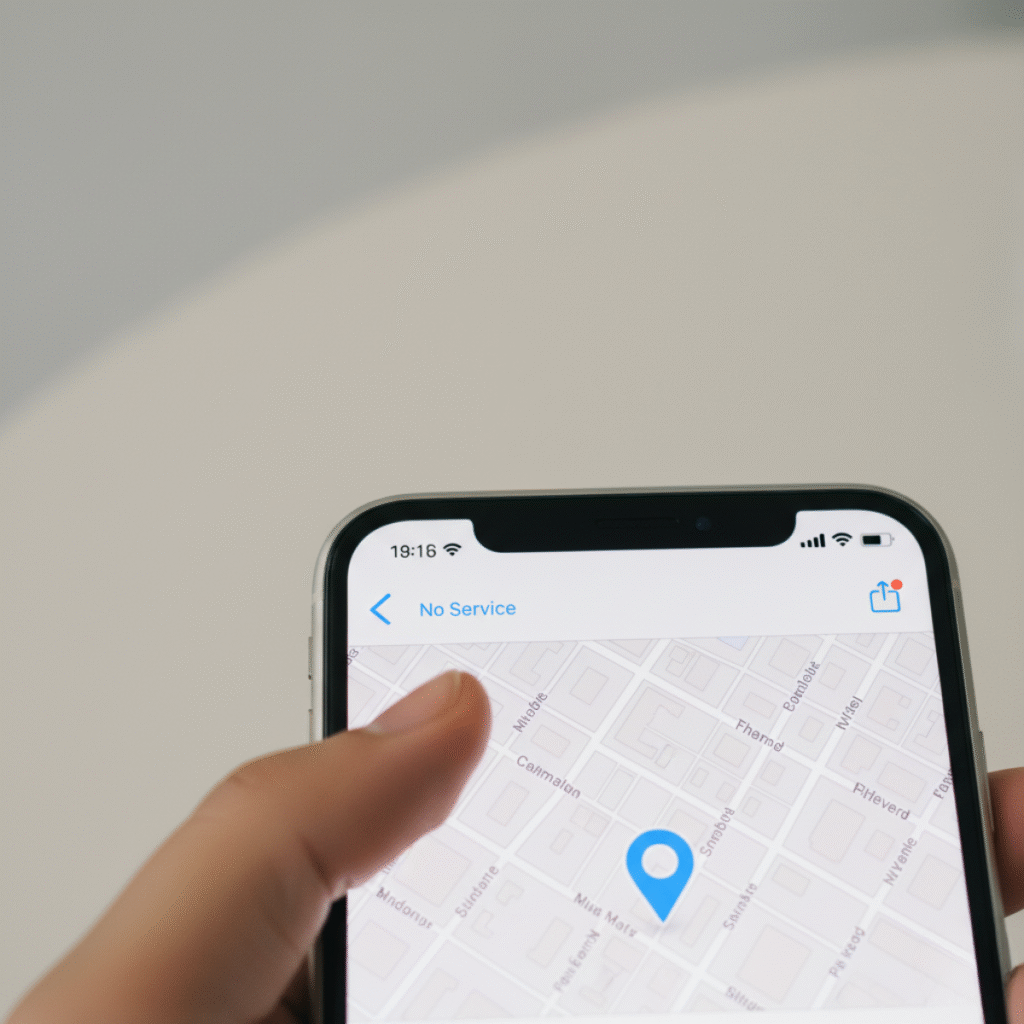
I Opened the Maps App: I made sure I was not connected to Wi-Fi or cellular data by looking for the Wi-Fi and cellular icons at the top of my screen.
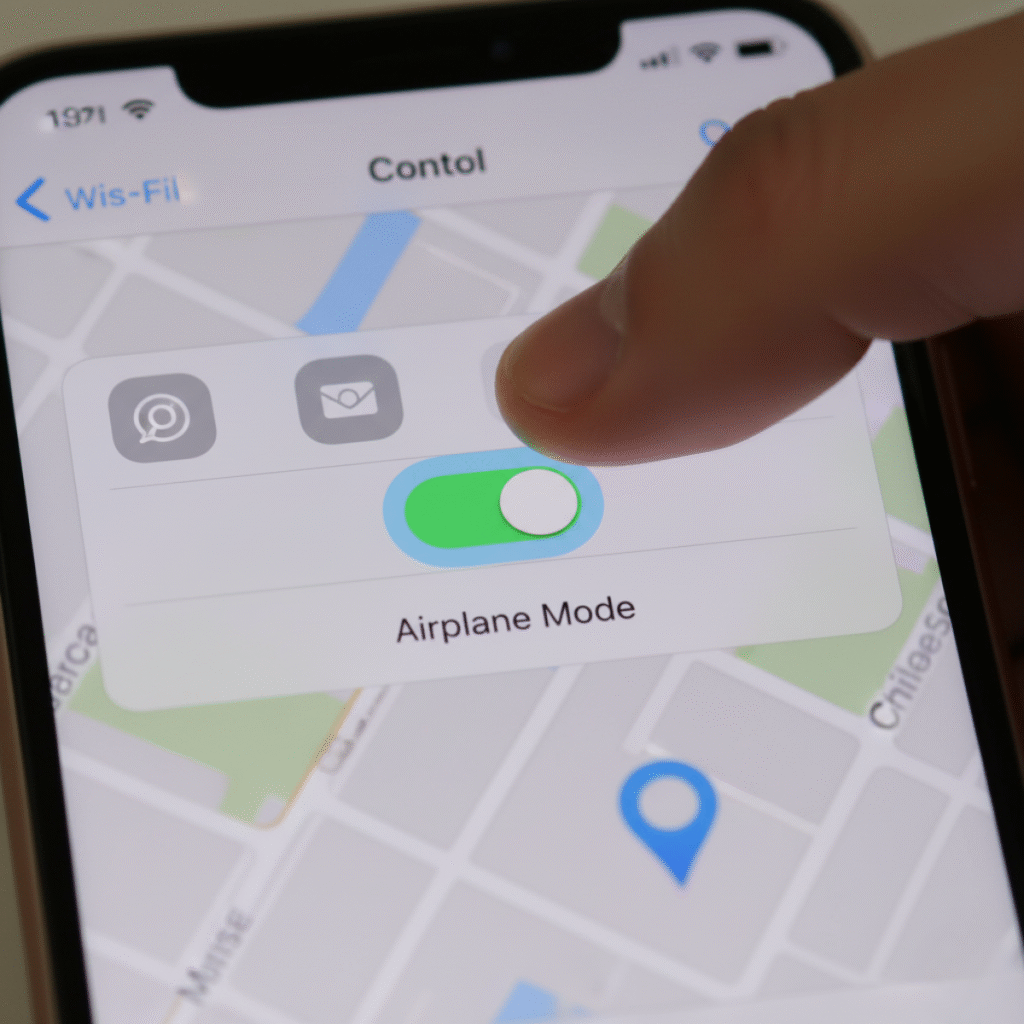
I Turned on Airplane Mode: I opened my Control Center by swiping down from the top right of my screen. I then tapped the airplane icon. I saw the Wi-Fi and cellular icons disappear.
I Watched My Location: With airplane mode on, I opened the Maps app. I noticed that my blue dot was still visible on the map. The GPS was still working and showed my exact location. However, because there was no internet connection, the map itself could not load new information. It could only show me the area of the map that was already downloaded on my phone.
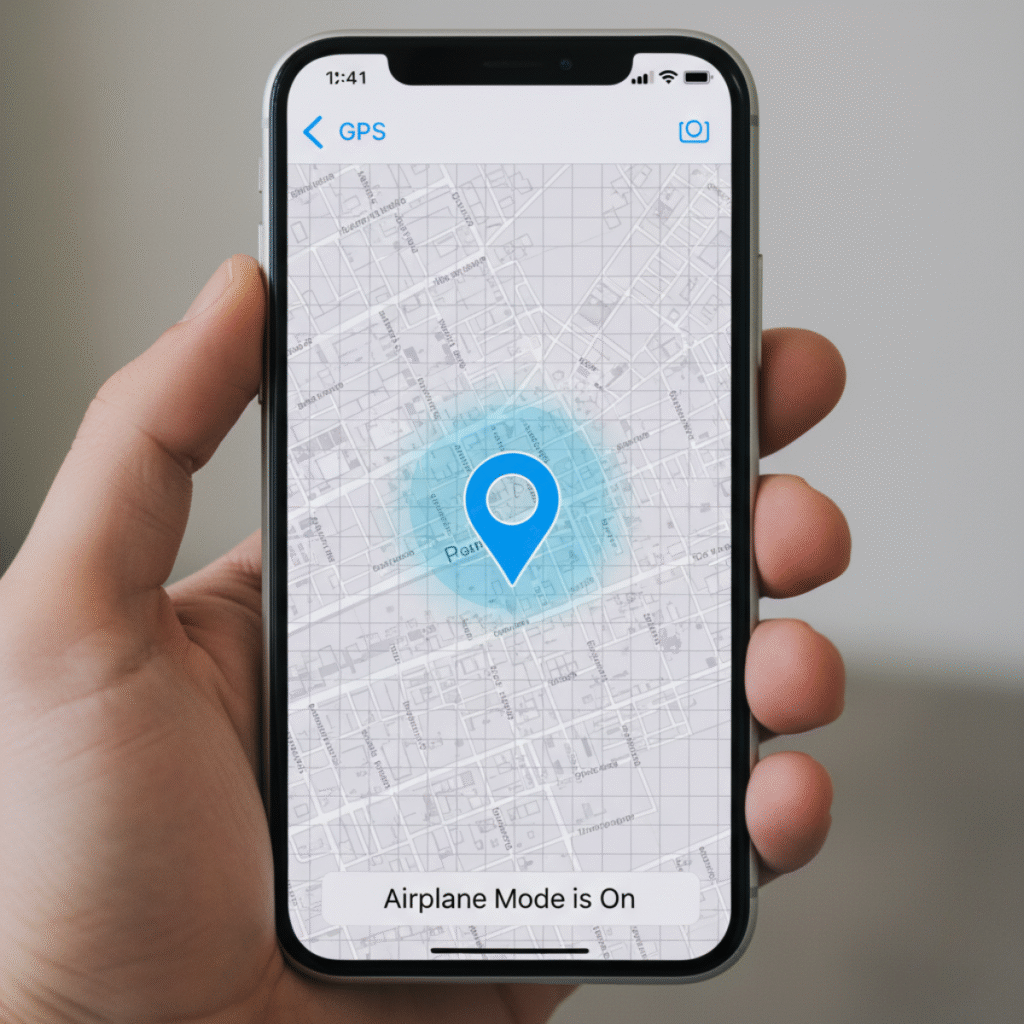
This was the key finding. The GPS was active, but without a cellular or Wi-Fi connection, the map data couldn’t be updated. So, while my phone knew exactly where I was, it couldn’t show me the surrounding streets or landmarks unless they were already stored.
My Final Thoughts and Practical Advice
Knowing this has been really useful for me. If I am in an area with a bad signal and I have a map downloaded, I know that my iPhone can still show me my location. It’s a great tool for hiking, traveling in rural areas, or times when you want to save battery but still need to track your position.
However, if you are truly trying to stop your location from being tracked by a friend or family member through apps like “Find My,” you would need to go a step further. While airplane mode does a lot, it doesn’t turn off every single location service. To truly do that, you would need to go into Settings > Privacy & Security > Location Services and turn off Location Services completely.
So, the next time you are wondering if airplane mode turns off location on your iPhone, you can remember my experience. It’s a great way to save battery, but your iPhone’s internal GPS is still working hard to keep you on the right track.
To know more about iPhone Tips & Tricks see my guides