Navigating the Apple and non-Apple ecosystems can sometimes feel like trying to speak two different languages. The “walled garden” approach of Apple, while creating a seamless experience between its own devices (think iPhone and MacBook), can make it tricky to connect your iPhone to a non-Apple laptop, like a Windows PC.
I’ve personally grappled with this challenge. Relying on a USB cable feels outdated, and the idea of a truly wireless connection allowing me to share files, mirror my screen, and get notifications on my laptop is a game-changer for my productivity.
After exploring various methods, I’ve found that a simple, single solution doesn’t exist. Instead, the best approach is to choose the method that best fits your specific needs.
This guide will break down how to connect iPhone to laptop wirelessly, whether it’s a Windows PC or a Mac, and help you find the solution that’s right for you.
Method 1: Connecting to a Mac with AirDrop & AirPlay (The Built-in Solution)
If you’re using a MacBook, MacBook Air, or MacBook Pro, you’re in luck. Apple has built-in wireless features that make connecting to your iPhone effortless. This is the most seamless method available, and it’s what I use for my own work.
What it’s best for:
- Quickly transferring photos, videos, and files.
- Screen mirroring your iPhone to your Mac.
- Sharing your iPhone’s internet connection.
How to Do It:
- For File & Photo Transfer (AirDrop):
- Make sure both your iPhone and Mac have Wi-Fi and Bluetooth turned on and are in close proximity.
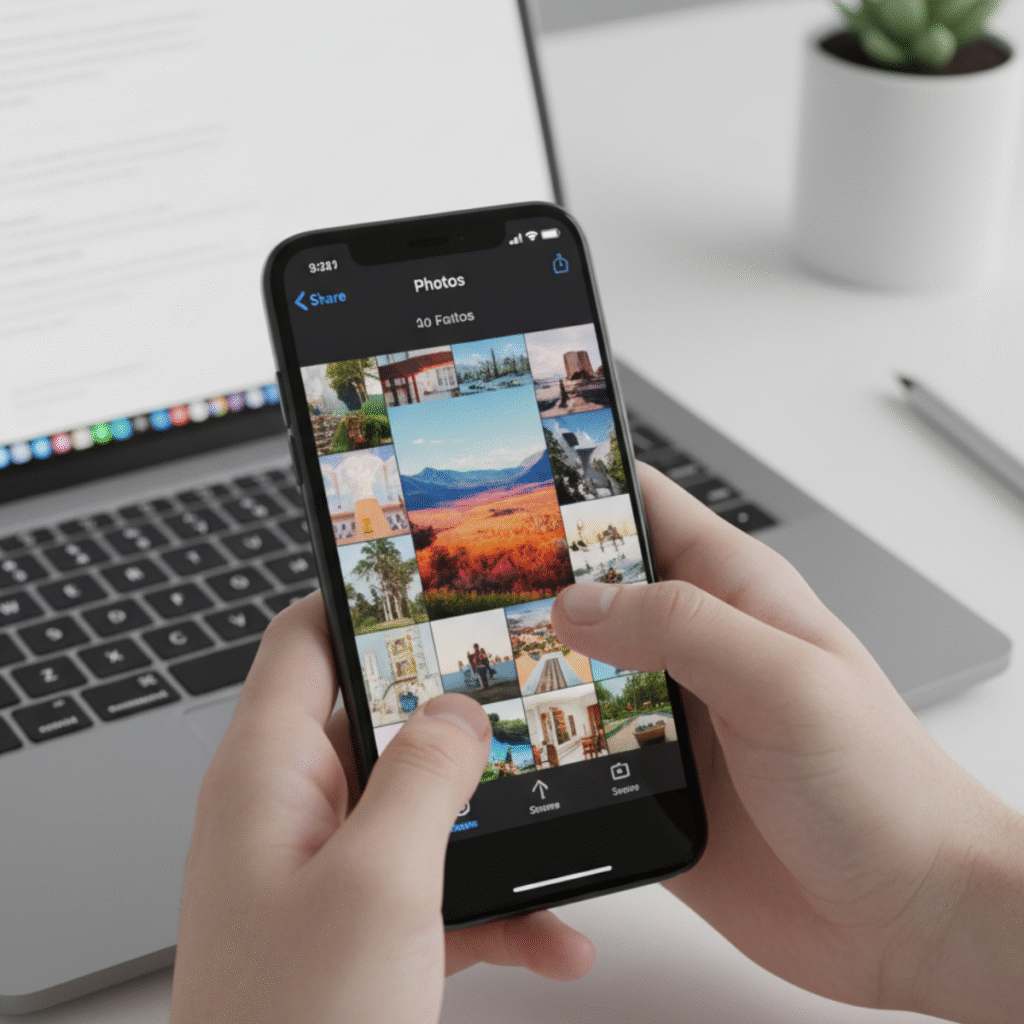
- On your iPhone, find the file or photo you want to share.
- Tap the share icon (the square with an arrow pointing up).
- Select AirDrop from the menu. Your Mac’s name will appear. Tap it, and the file will be sent instantly. It’s the fastest and easiest way to move content between your Apple devices.
- For Screen Mirroring (AirPlay):
- On your Mac, go to System Settings > General > AirDrop & Handoff and make sure “AirPlay Receiver” is turned on.
- On your iPhone, swipe down from the top-right corner to open Control Center.
- Tap the Screen Mirroring icon (two overlapping rectangles).
- Select your Mac from the list of available devices. Your iPhone’s screen will now be mirrored on your Mac. This is a fantastic feature for presentations or just viewing content on a larger display.
Method 2: Connecting to a Windows PC with Microsoft Phone Link (The Official Way)
Microsoft has made significant strides in bridging the gap between Windows and iOS with its Phone Link app. While it doesn’t offer the full-featured syncing of AirDrop, it’s a huge step up for iPhone users who work on a Windows PC.
What it’s best for:
- Managing your iPhone’s notifications on your PC.
- Making and receiving phone calls.
- Sending and receiving text messages.
- Transferring photos and other files.
How to Do It:
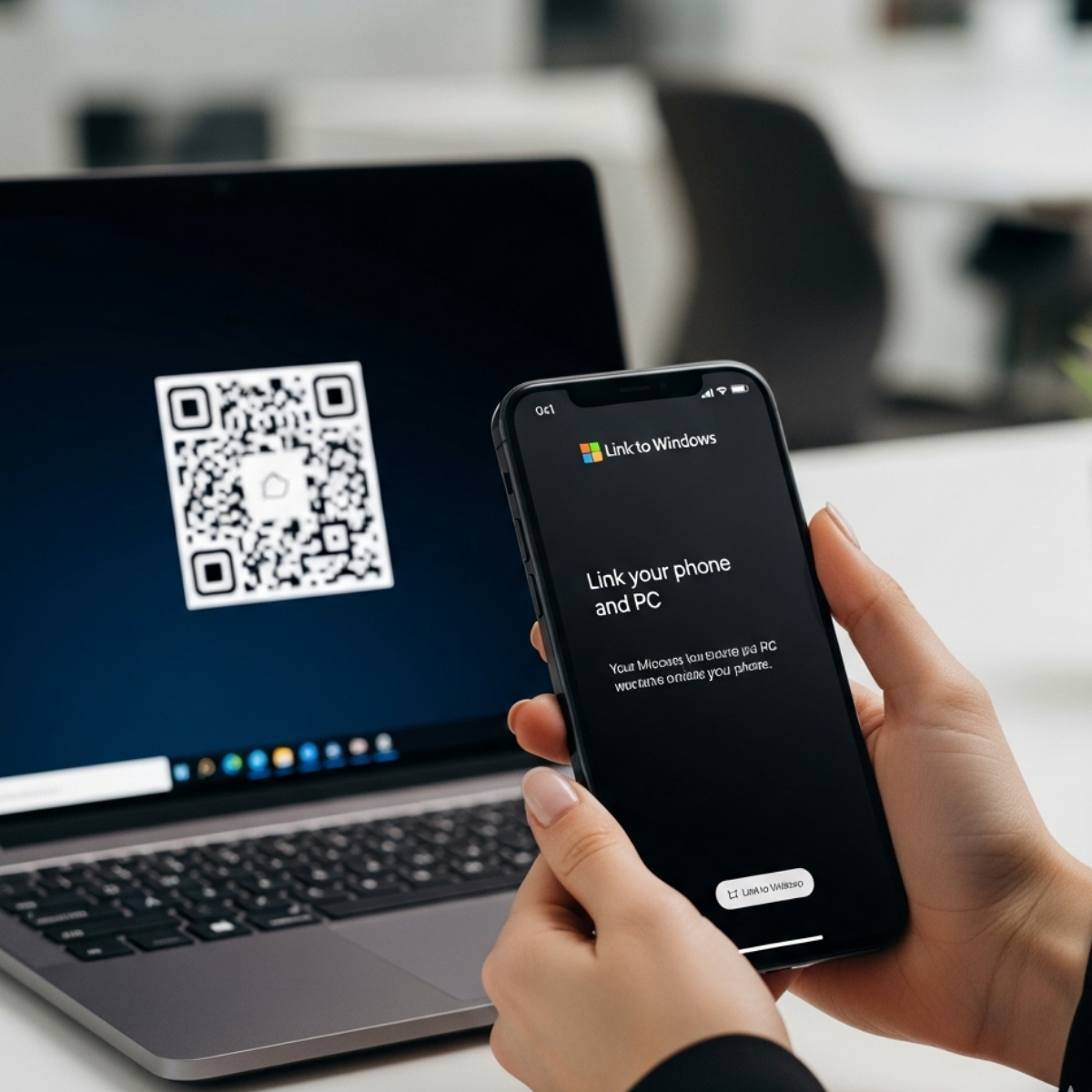
Install the Apps: On your Windows laptop, search for and open the Phone Link app. On your iPhone, download the Link to Windows app from the App Store.
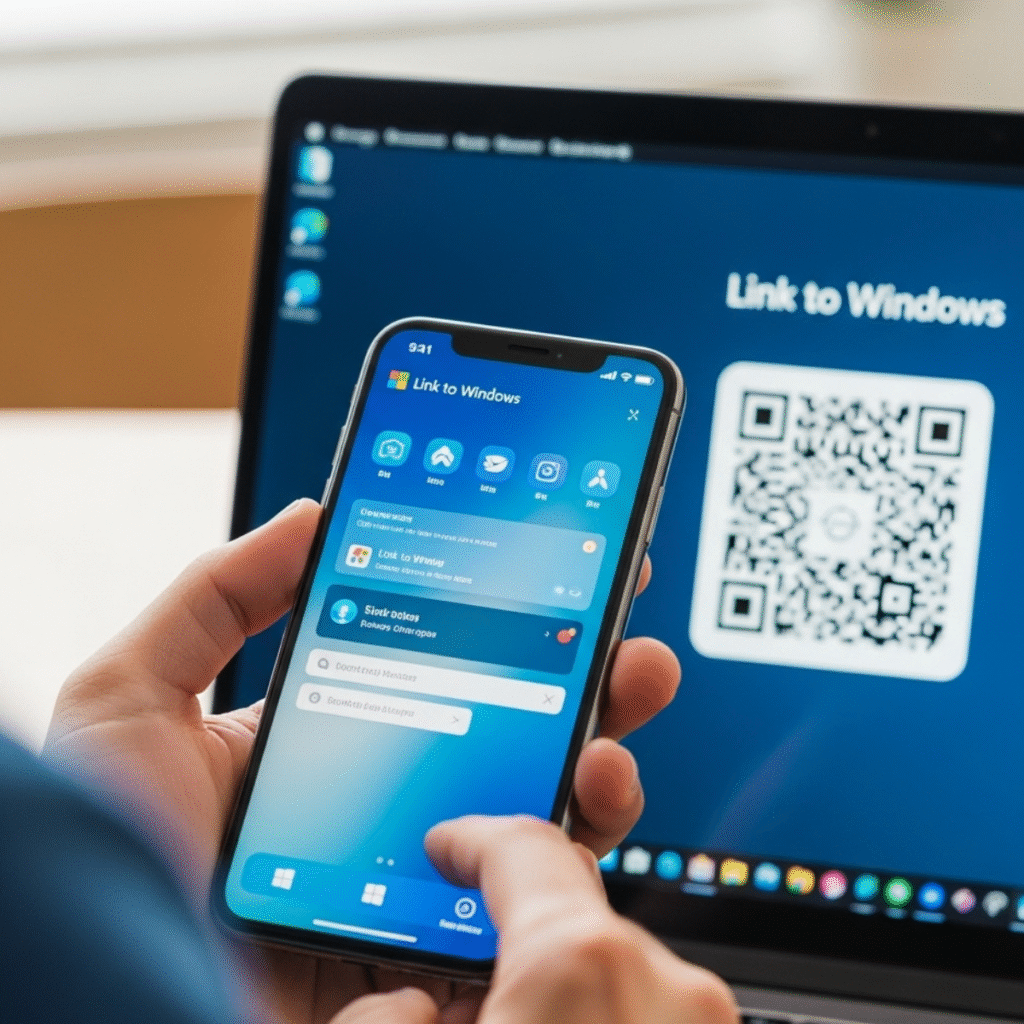
Pair the Devices: Open the Phone Link app on your PC and select the iPhone option. Follow the on-screen instructions, which will involve scanning a QR code with your iPhone’s camera from the Link to Windows app.
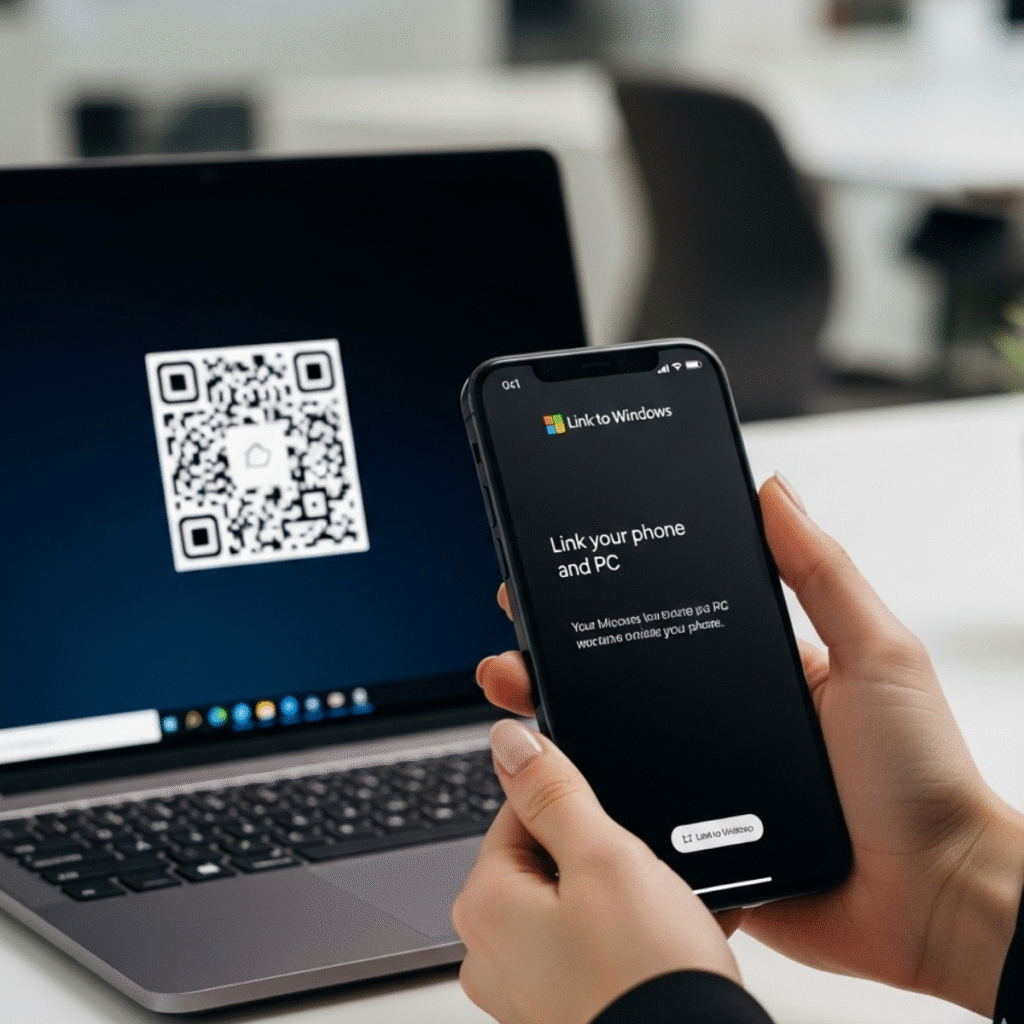
Grant Permissions: Once the devices are connected, you will be prompted on your iPhone to grant permissions for features like notifications, messages, and contacts. Granting these permissions will allow you to see and interact with your iPhone’s content from your laptop.
Method 3: Using Cloud Storage Services (The Universal Method)
This is a platform-agnostic solution that works seamlessly on any laptop, whether it’s a Mac, Windows, or Linux. Cloud services act as a neutral ground where you can upload files from your iPhone and download them on your laptop.
What it’s best for:
- Transferring large files or batches of photos and videos.
- Accessing files from anywhere with an internet connection.
- Creating a backup of your data.
How to Do It:
- iCloud (For All Platforms):
- On your iPhone, go to Settings > [Your Name] > iCloud and make sure iCloud Drive and Photos are enabled.
- On your laptop, go to iCloud.com in a web browser and sign in with your Apple ID. You can access your photos and files directly from the web.
- Alternatively, if you have a Windows PC, you can download the iCloud for Windows app, which syncs your iCloud files directly to your PC’s File Explorer.
- Google Drive, Dropbox, or OneDrive:
- Install your preferred cloud storage app on both your iPhone and your laptop.
- Upload files from your iPhone to a folder in the app.
- The files will automatically sync and be accessible on your laptop. This is a reliable and straightforward method that I often use for transferring work-related documents between my devices.

Method 4: Third-Party Apps (The All-in-One Alternative)
If the above methods don’t meet your needs, there are a number of third-party applications designed specifically for wireless file transfer and phone management. These often provide more features than the built-in solutions but require installing software on both devices.
What to look for:
- AirDroid: A popular tool that allows you to manage files, receive notifications, and even control your phone remotely from a web browser or a desktop app. It’s an excellent choice if you’re looking for more comprehensive control.
- Send Anywhere: A great option for simple file transfer. It uses a 6-digit key to connect devices, making it incredibly fast and secure for sending files without needing to create an account.
- Intel Unison: A newer app that aims to create a unified experience between your phone and PC, allowing you to transfer files, manage notifications, and mirror your screen. It’s worth checking out if you have a compatible Windows PC.

My Final Recommendation
For me, the best solution is a combination of these methods. For a quick photo or a document, I’ll use AirDrop between my iPhone and Mac without a second thought. If I’m on a Windows machine, the Microsoft Phone Link app has become my go-to for managing notifications and messages. And for a larger batch of files or for a reliable backup, I always fall back on the universal convenience of a cloud service like Google Drive.
By understanding the strengths of each of these tools, you can break free from the constraints of cables and create a truly wireless workflow that keeps your devices connected and your productivity high.
To know more about iPhone Tips & Tricks see my guides.