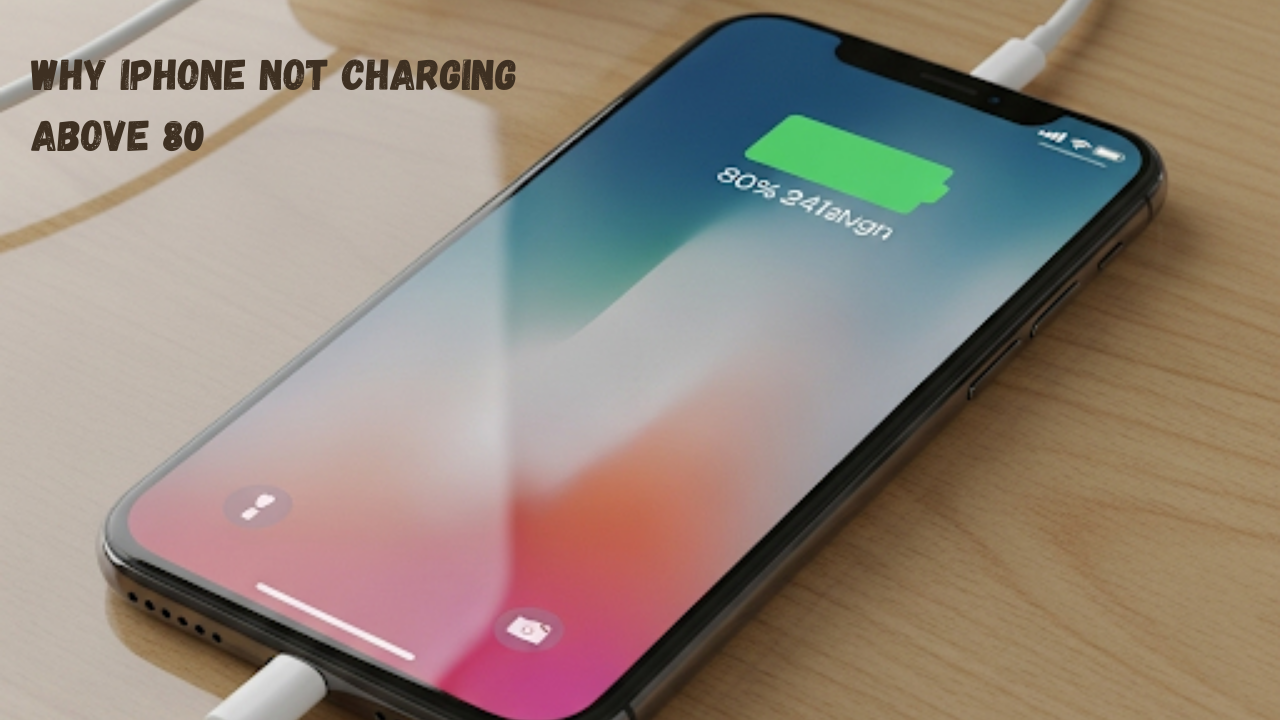
When I first saw my iPhone stop charging at 80%, I was pretty confused and, I’ll be honest, a little worried. Was my battery broken? Was this a glitch? I’m someone who relies heavily on my phone for work and personal life, so having it charge to what I thought was its full capacity was a big deal.
After some digging and a lot of trial and error, I discovered the simple and very logical reason behind it. It turns out, this isn’t a problem at all; it’s a feature. A very smart one, at that.
The primary reason your iPhone stops charging at 80% is because of a feature called Optimized Battery Charging. Apple introduced this with iOS 13 to extend the lifespan of your battery. Here’s how I learned it works:
What I Learned About Optimized Battery Charging
The lithium-ion batteries in our iPhones, while incredibly efficient, age over time. Leaving them at a full 100% charge for long periods, especially overnight, can put stress on them and speed up that aging process.
Optimized Battery Charging uses on-device machine learning to understand your daily routine. My iPhone noticed that I usually plug it in every night around 10 PM and unplug it around 7 AM. So, what it does is this:
- It charges my phone quickly up to 80%.
- It then pauses charging there.
- Based on my habits, it predicts when I’ll wake up and need my phone.
- It finishes charging that last 20% to get to 100% just before I’m about to unplug it in the morning.
This simple process minimizes the time my battery spends in that high-stress, fully-charged state, which helps it maintain its maximum capacity for a much longer time. It’s a genius idea, really. It gives me a fully charged phone when I need it without putting unnecessary strain on the battery.
Other Reasons I’ve Found for the 80% Limit
While Optimized Battery Charging is the most common culprit, I’ve also run into a few other situations where my iPhone stopped charging before 100%.
- Temperature: I once left my phone charging on my car’s dashboard on a hot, sunny day. When I came back, it was only at 80%. My phone was a little warm, and I learned that if an iPhone’s battery gets too hot, the software will limit charging as a safety measure to prevent damage. It’s a built-in protection. Once it cooled down, it started charging again.
- A Bad Cable or Charger: I’ve had some cheap, non-certified charging cables over the years that just didn’t work right. Sometimes they’d charge my phone super slowly, and other times they’d be inconsistent and cause it to stop charging early. Swapping to an official Apple or MFi-certified cable always solved the issue for me.
- Software Glitches: Once in a while, after a new iOS update, I’ll notice some strange behavior. A quick restart of my phone usually fixes these minor bugs and gets things back to normal.
- Poor Battery Health: In my older iPhone, I started noticing it would barely hold a charge anymore. I checked the battery health in Settings > Battery > Battery Health & Charging, and the “Maximum Capacity” was well below 80%. At that point, the battery had just aged to a point where it couldn’t be trusted to hold a full charge, and I knew it was time for a replacement.
My Personal Solutions and How to Get to 100%
Based on my personal experience, here’s how I resolved the issue of my iPhone stopping its charge at 80%, complete with visuals for each step.
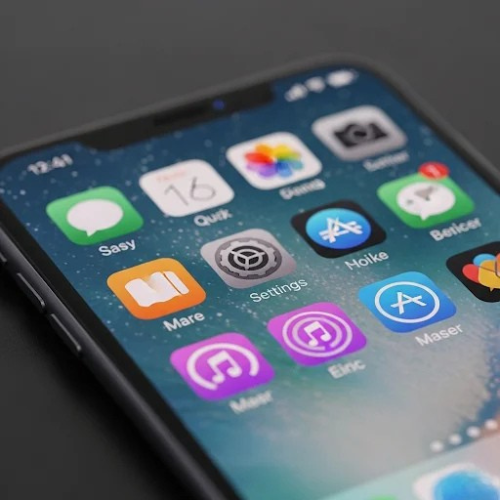
Step 1: Open Settings
The journey to fixing this issue starts, as many iPhone solutions do, in the Settings app. I simply found the familiar gear icon on my home screen and tapped it.
Step 2: Navigate to Battery
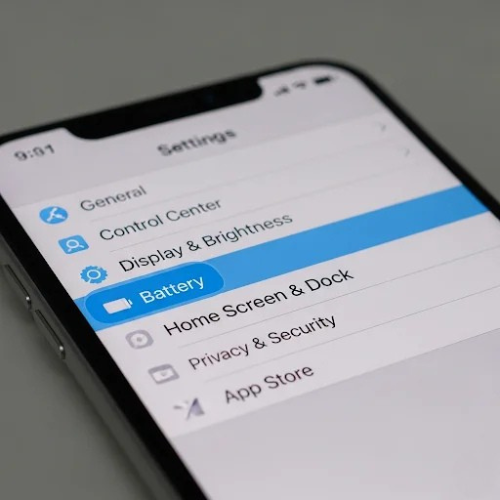
Once inside the Settings menu, I scrolled down until I found the “Battery” option. It’s usually easy to spot because of its battery-shaped icon. Tapping on this takes me to the battery-related settings.
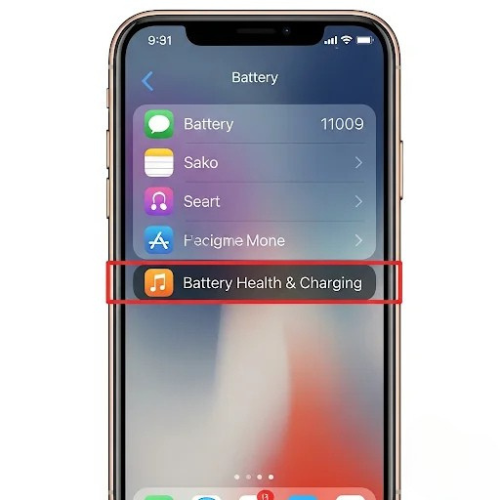
Step 3: Find Battery Health & Charging
In the “Battery” menu, I looked for and selected “Battery Health & Charging.” This is the key menu where all the magical battery management features live.
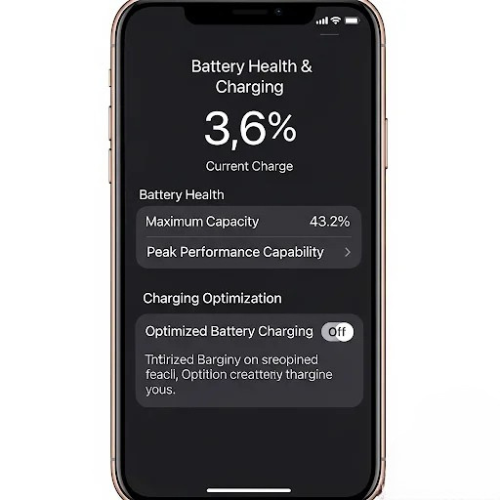
Step 4: Turn off Optimized Battery Charging
Finally, I saw the “Optimized Battery Charging” option. It had a toggle switch next to it. To get my phone to charge to 100% every time, I simply tapped the switch to turn it off. The switch turned gray, confirming the feature was disabled.
I’ve learned that while turning this off gives me a 100% charge whenever I want, it’s a good idea to leave it on if I’m not in a hurry, as it helps keep my battery healthy in the long run.
You can also just leave the feature on and, when you see the “Optimized Battery Charging is active” message on your lock screen, simply press and hold it, then tap Charge Now. This is what I do most of the time when I’m in a hurry.